
Sleep
Sleep tracking follows a child’s nights: you start a sleep session at bedtime, log what happens during the night, and stop it in the morning. Over time the board builds a picture of how well they sleep — useful to share with a therapist.
Open it from Sleep in the family navigation.
The sleep board
Section titled “The sleep board”Each child has a column with session controls, a month calendar coloured by sleep quality, a time-to-sleep chart, and a list of past sessions.
The sleep board: a column per child with the Start button and a quality calendar.
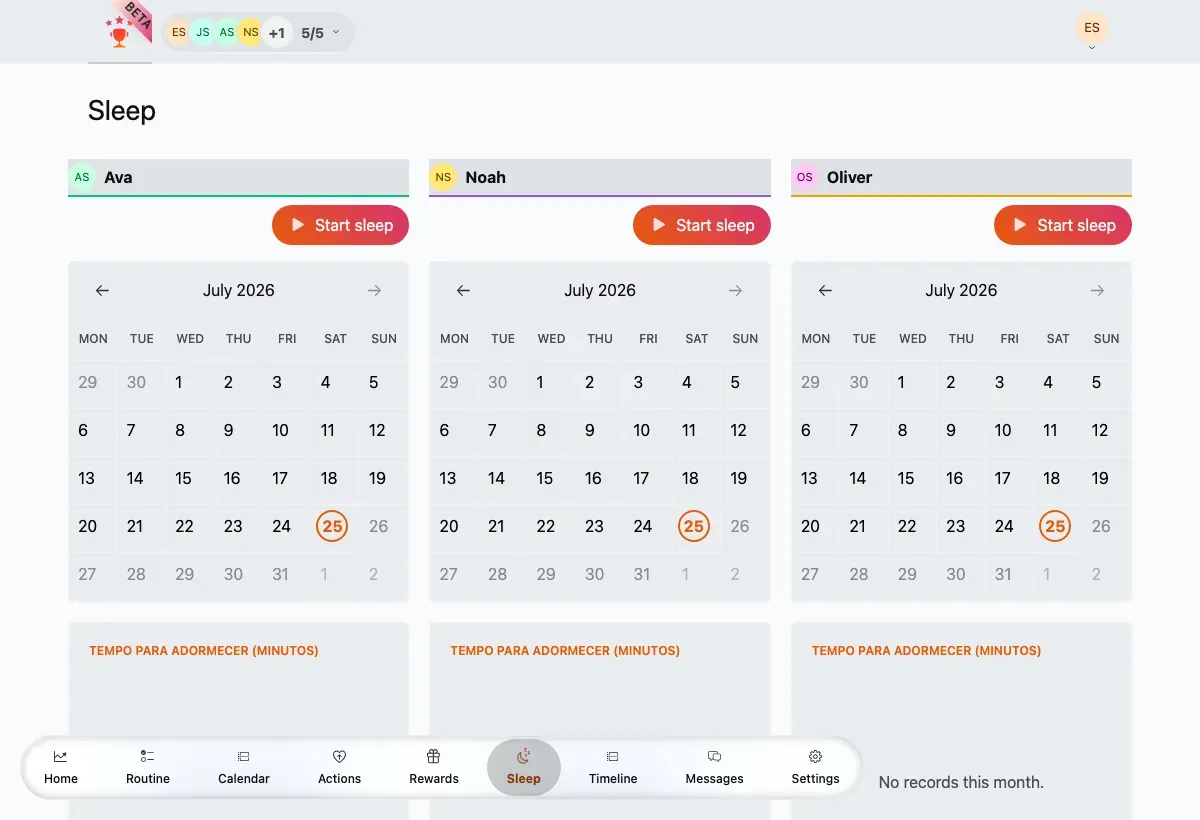
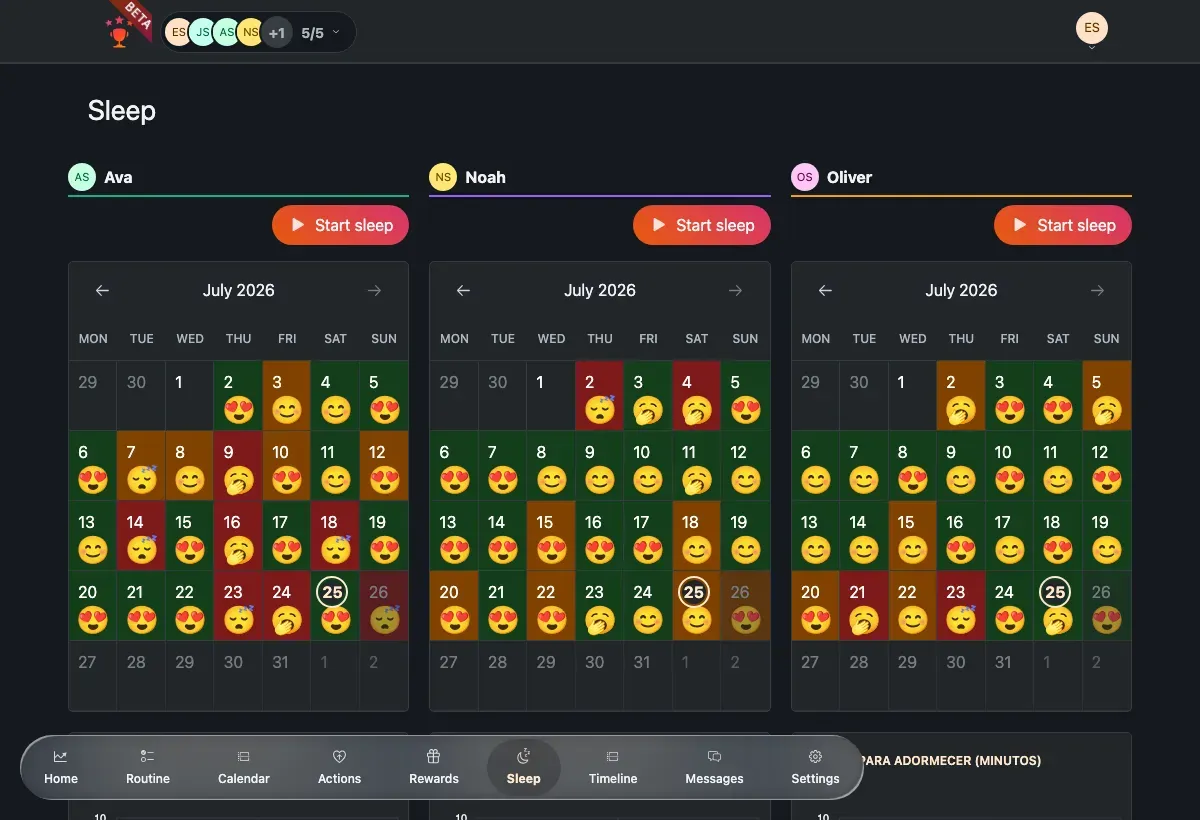
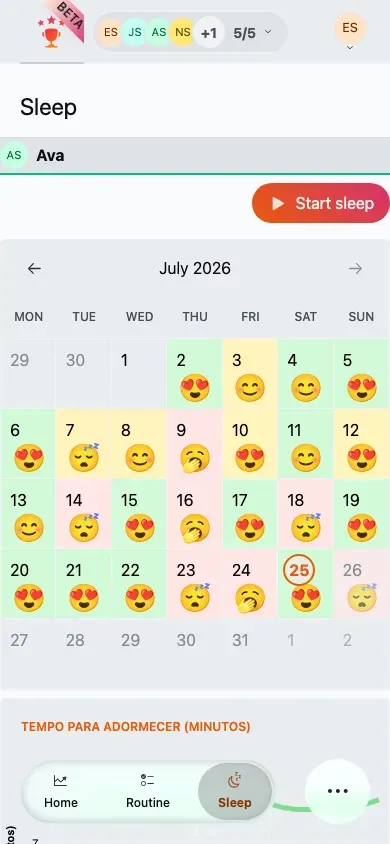
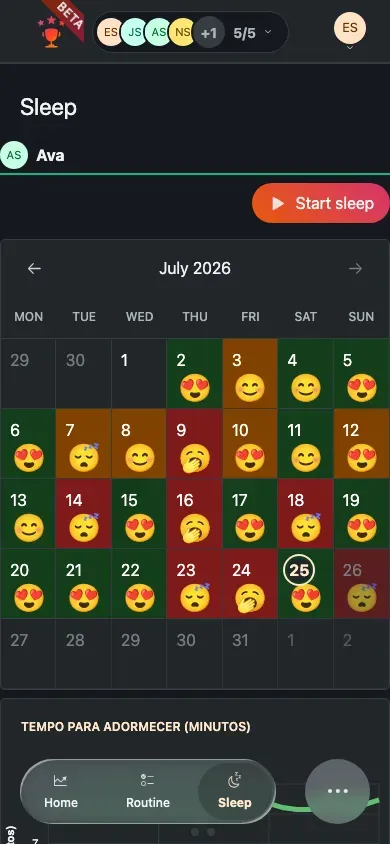
Each day on the calendar carries an emoji for how the night went; tap a day to see its details. A day with no session shows an empty state.
On a phone each child’s calendar, chart and session list stack vertically.
Track a night from the board
Section titled “Track a night from the board”-
On a child’s column, tap Start to begin a session.
-
Use the Register menu to mark the milestones of the night — laid down, fell asleep, and so on.
-
Add an Occurrence for anything that happens during the night. Pick the type, set the time, and add an optional duration and notes. There are twelve occurrence types: laid down, fell asleep, woke up, call-out, nightmare, night terror, sleep-walking, sleep-talking, snoring, bed-wetting, coughing and got up.
-
In the morning, tap Stop, record that they woke up, then save to end the session.
A child’s bedtime
Section titled “A child’s bedtime”When a bedtime routine task starts a session, the child gets a dedicated, child-only experience rather than the board:
-
A bedtime routine task starts the session and shows a short “making the bed” loading screen.
-
Night mode takes over with a calm, dark “good night” screen showing the time and how long they’ve been asleep.
-
In the morning, the “Did you sleep well?” form asks the child to rate the night on an emoji scale.
-
Saving ends the routine and starts the new day.
Night mode and the morning form are for the child only. If an adult opens the sleep screen while a session is running, they’re sent to the board instead.
Review sleep history
Section titled “Review sleep history”-
Open Sleep from the family navigation.
-
Read the month calendar — each day shows a sleep-quality emoji. Tap a day to open its details, including that night’s occurrences.
-
Scan the time-to-sleep chart to see how long it took to fall asleep across the month.
-
Scroll the session list to open each night and read its full timeline of occurrences.
Related
Section titled “Related”- Emotions — log how a child feels day to day.
- Wellbeing overview — how the wellbeing tools fit together.