
Messages
Messages is a private chat between the people in your family (and your therapist, if you have one). You get a one-to-one conversation with each member — no group threads. Open it from Messages in the family navigation.
The conversation list
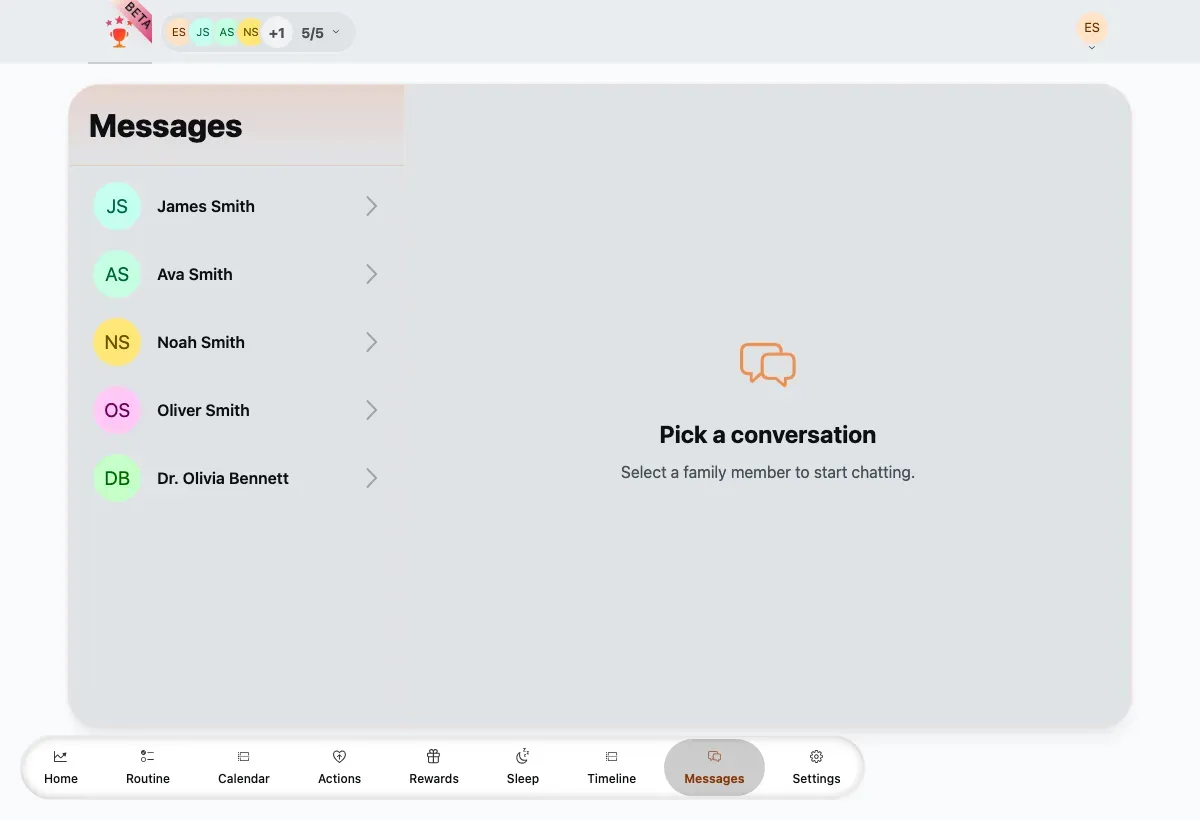
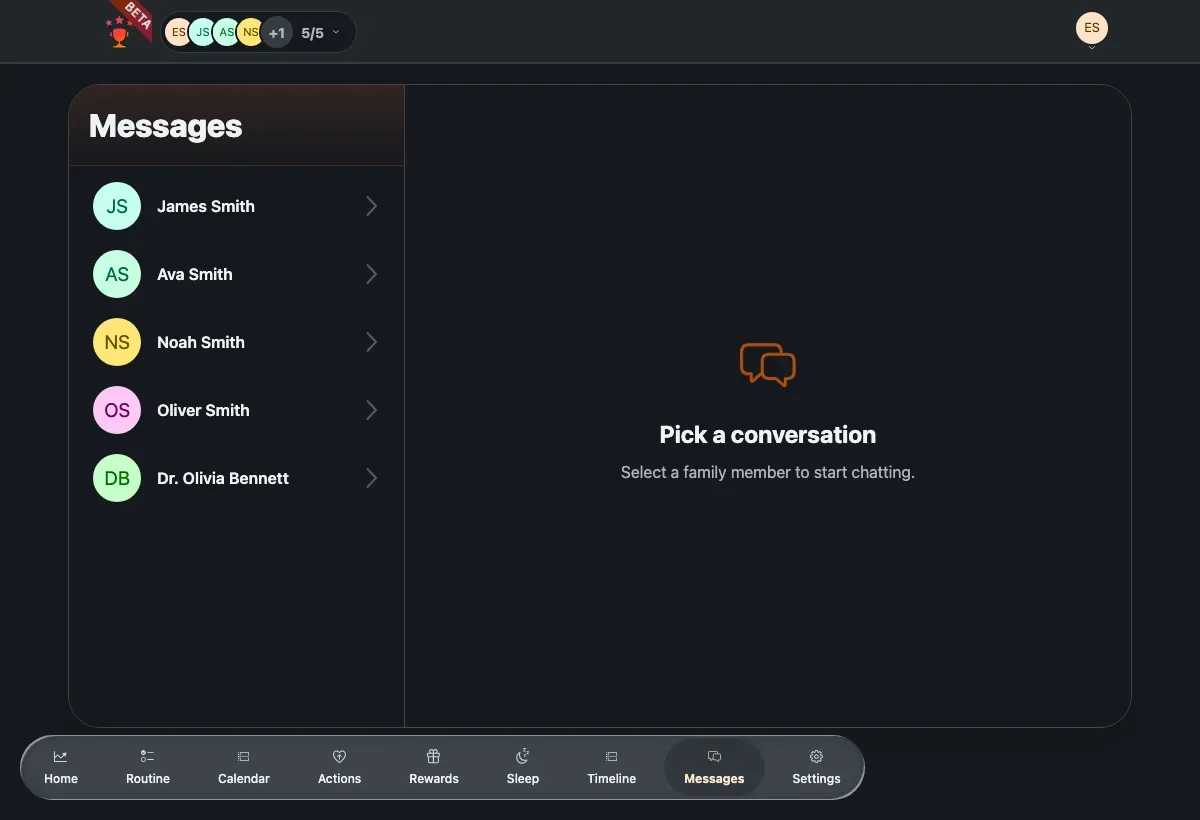
Section titled “The conversation list”On a wide screen, Messages is a split view: your family members on the left, the open conversation on the right. Until you pick someone, the right side shows a Pick a conversation placeholder.
The split view: your family members on the left, an open conversation on the right.
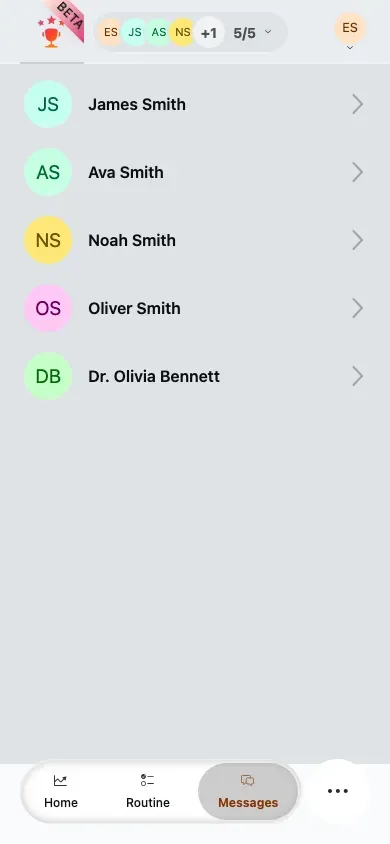
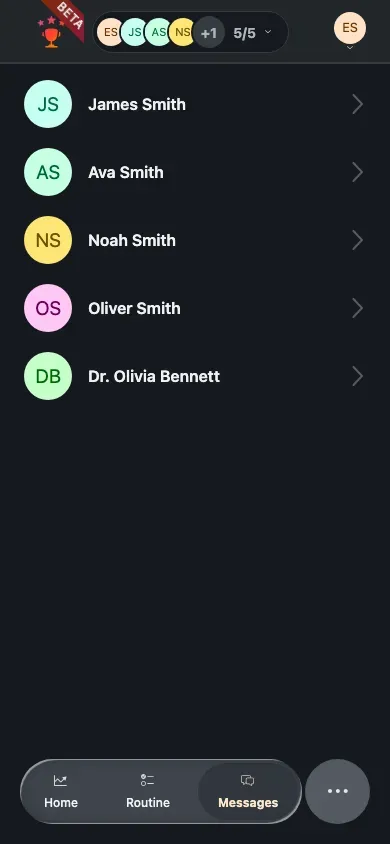
On a phone the list fills the screen; tapping a member opens their thread, and you come back to the list to switch conversations.
On a phone the conversation list fills the screen.
Send a message
Section titled “Send a message”-
Open Messages from the family navigation.
-
Pick a family member from the list. Their conversation opens — a new one shows No messages yet. Say hello!
-
Type in the message box and send with the paper-plane button.
Floating chat
Section titled “Floating chat”A floating chat bubble is available on family and child screens, so you can send a quick message without leaving what you’re doing.
-
Tap the floating chat bubble on any family or child screen.
-
Pick a member from the list inside the panel.
-
Send your message inline — the page you were on stays where it is.
Who sends the message
Section titled “Who sends the message”Because children share a parent’s account, TaDone records the message as coming from whoever is acting at the time — the profile currently in use, not necessarily the account owner. Switch profiles before you write, and the message is sent as that person. Your own profile doesn’t appear in the conversation list — you can’t message yourself.