
Today
The home tab — points, recent wins, streak and today’s goals.
TaDone has a dedicated, playful space for children. It is big, colourful and made for small fingers — full of sounds, animations and rewards that make daily routines feel like a game. This section is written for you, the parent, so you know exactly what your child sees and does inside Kid Mode.
Children have no separate login. Kid Mode is simply a view of your own account — you open it for them. Because children share your account, there is no password for a child to remember and nothing for them to set up.
Sign in to TaDone as usual, then open the profile picker.
Tap your child’s avatar (for example Sofia, Miguel or Tomás).
Optionally turn on Lock profile so your child stays in their own view and can’t switch profiles or sign out.
Confirm — the app opens your child’s playful home screen.
Once you’re in, every page sits inside the child shell — the friendly frame your child sees on every screen.
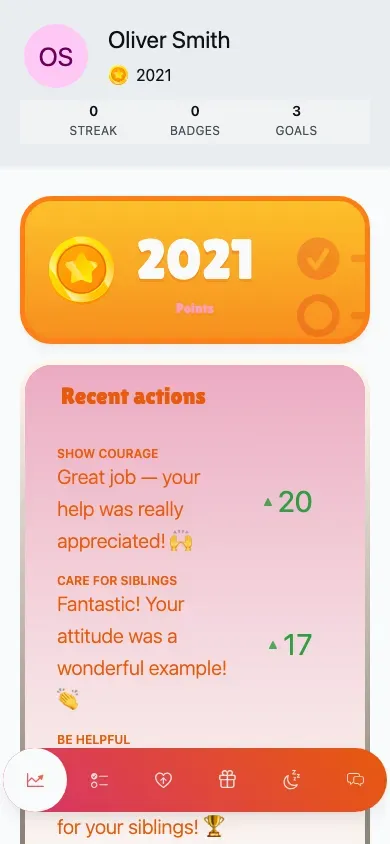
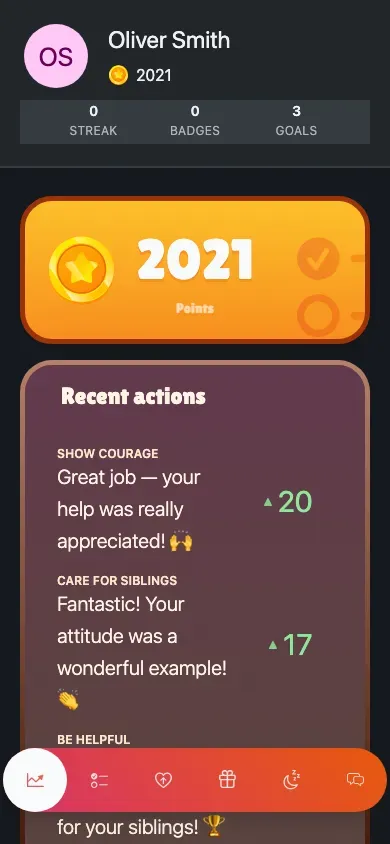
The child shell — Sofia’s avatar and points at the top, the tab bar at the bottom (mobile view).
At the top your child sees:
At the bottom is the tab bar, the main way your child moves around. Depending on which features you’ve turned on, it can include:
Today
The home tab — points, recent wins, streak and today’s goals.
Routine
Today’s tasks to tick off, grouped by routine.
Actions
The good-behaviour moments they’ve been recognised for.
Rewards
The catalogue of rewards to spend points on.
Sleep
Bedtime and wake-up, plus their sleep history.
Messages
A simple family chat with you.
Tapping the avatar in the header opens a small menu:
The Today tab is your child’s home and their safe landing spot. Instead of the grown-up analytics dashboard, it’s a friendly set of tiles:
Today home — a big points tile and recent wins (mobile view).
A fresh child simply sees zeros and empty strips until they start earning — the screen fills up as they complete their routine.
The whole shell can wear a playful theme your child picks in their settings — some even paint an animated background. There’s an optional pointer-trail effect, completion sounds, celebration animations, and a floating chat button. See Messages & themes to set these up.
My routine
Completing today’s tasks — checkboxes, the day score and the date slider.
Rewards & actions
Feelings & sleep
Messages & themes