
Rewards & actions
Two tabs celebrate the fun side of TaDone: Rewards, where your child spends the points they’ve earned, and Actions, where they see the good behaviour you’ve noticed. Both are designed to be encouraging — rewards are the goal to work toward, actions are the “well done”.
Rewards: spending points
Section titled “Rewards: spending points”The Rewards tab shows everything your child can buy with points, plus the rewards they’ve recently redeemed.
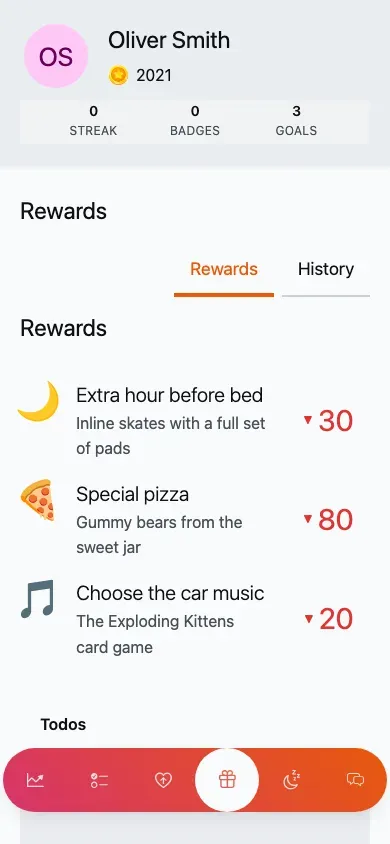
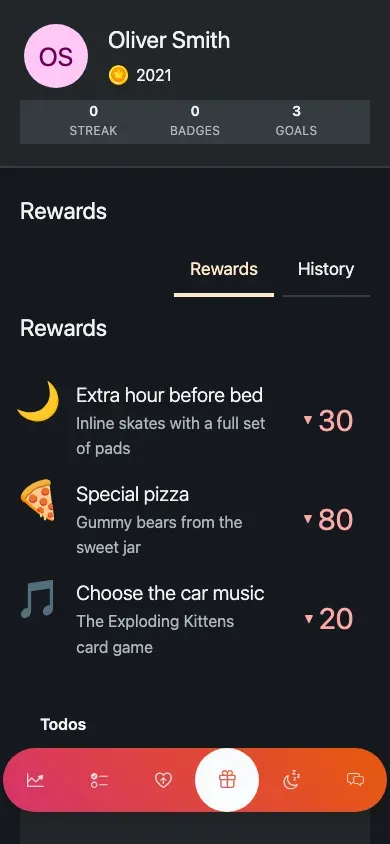
The rewards catalogue, grouped by type, with the point cost on each card (mobile view).
Rewards come in three flavours:
- Single-item rewards — a one-off treat for a set number of points.
- Money-based rewards — pocket-money style rewards.
- Time-based rewards — screen time and similar, paid for by the minute.
Redeeming a reward
Section titled “Redeeming a reward”-
Open the Rewards tab.
-
Tap a reward card.
-
On the redeem screen, confirm the points to spend and add a note if you like.
-
Submit — the points are deducted and the reward is saved to their history.
For a time-based reward, tapping it opens a countdown timer instead. It counts down showing the points being spent as the minutes tick by; when it ends, your child can save a note to finish. This makes “20 minutes of tablet” cost points fairly, minute by minute.
A History tab keeps a record of everything they’ve redeemed. If nothing has been set up yet, a playful empty message invites them to earn some rewards.
Actions: the good stuff you’ve noticed
Section titled “Actions: the good stuff you’ve noticed”The Actions tab is pure encouragement. It shows the good-behaviour actions you’ve set up for your child and a history of the moments you’ve recognised.
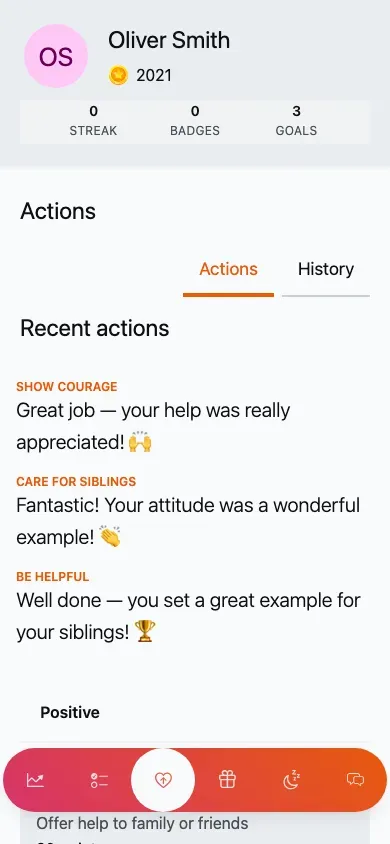
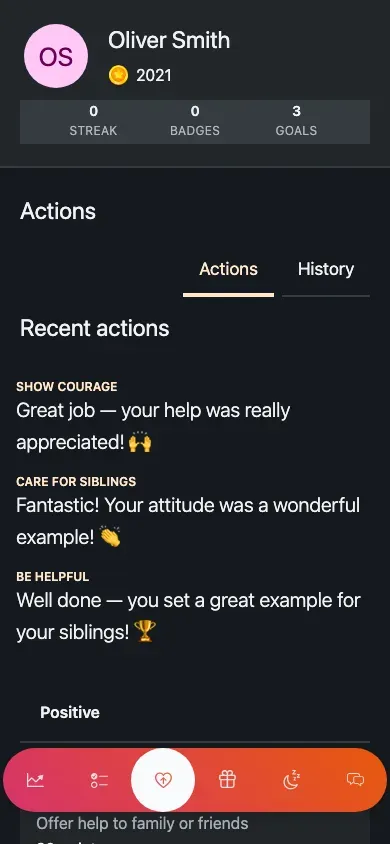
Recent positive actions above the grouped list of what earns bonus points (mobile view).
- A strip of recent actions — positive moments only, so this tab always feels good.
- A grouped list of the actions available for your child, so they can see what earns bonus points.
- A History view of everything that’s been recorded.
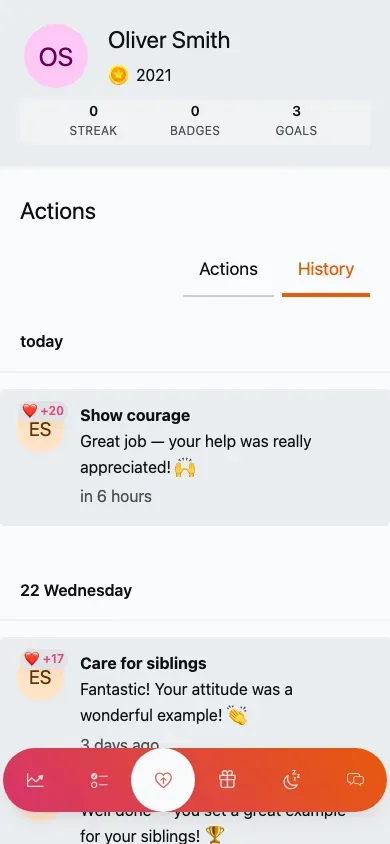
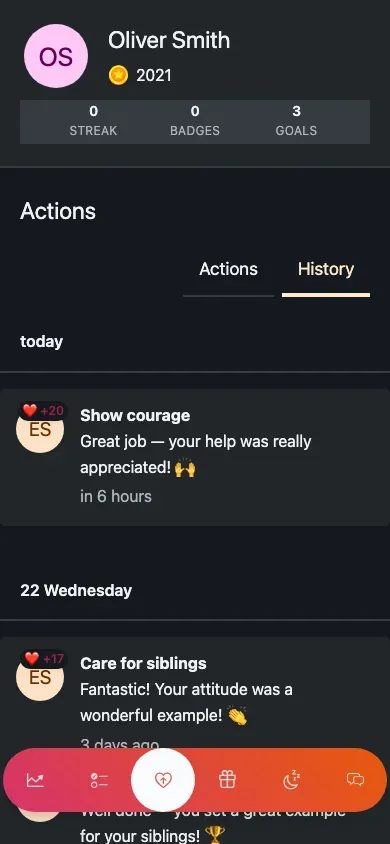
Actions history — grouped by day, with the points earned and who recorded each one (mobile view).