
Family members
Settings → Members is the roster for your family. Members are grouped into Children, Educators (guardians), Therapists and Pending invites. Any tutor with editing rights can manage the roster here.
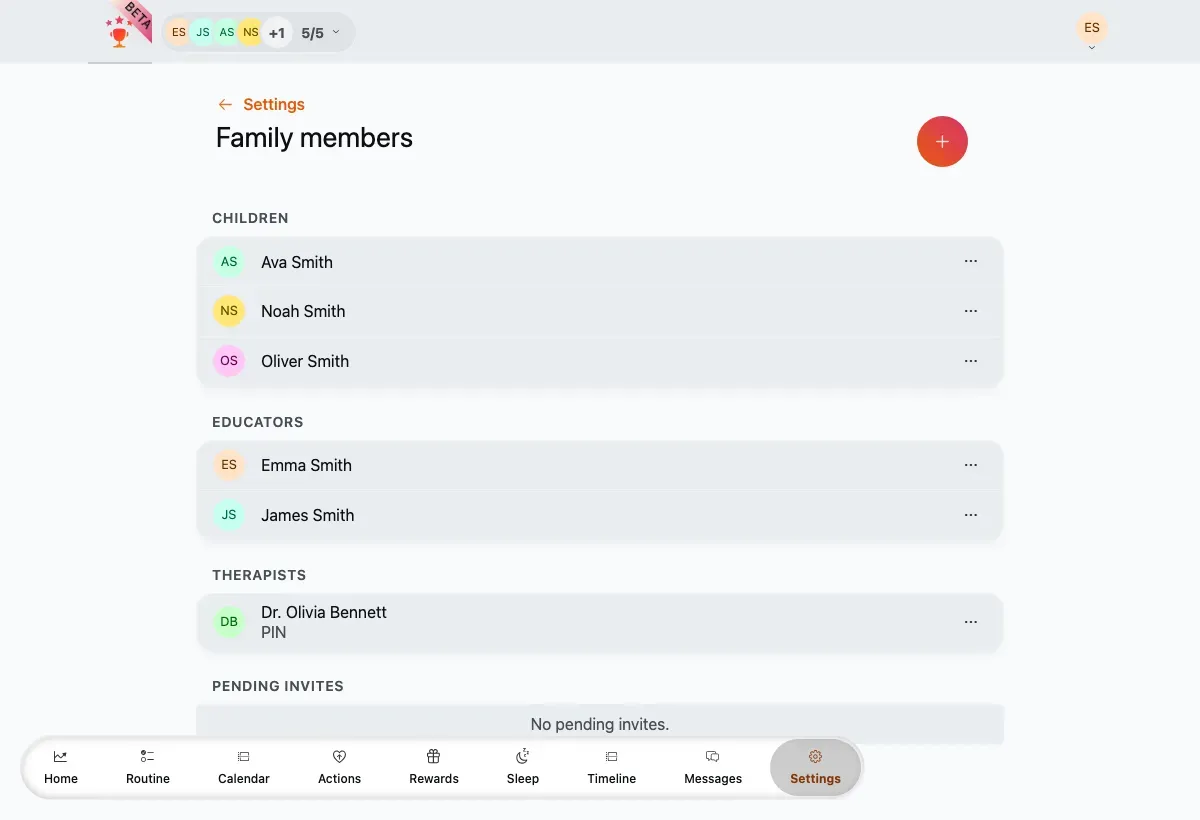
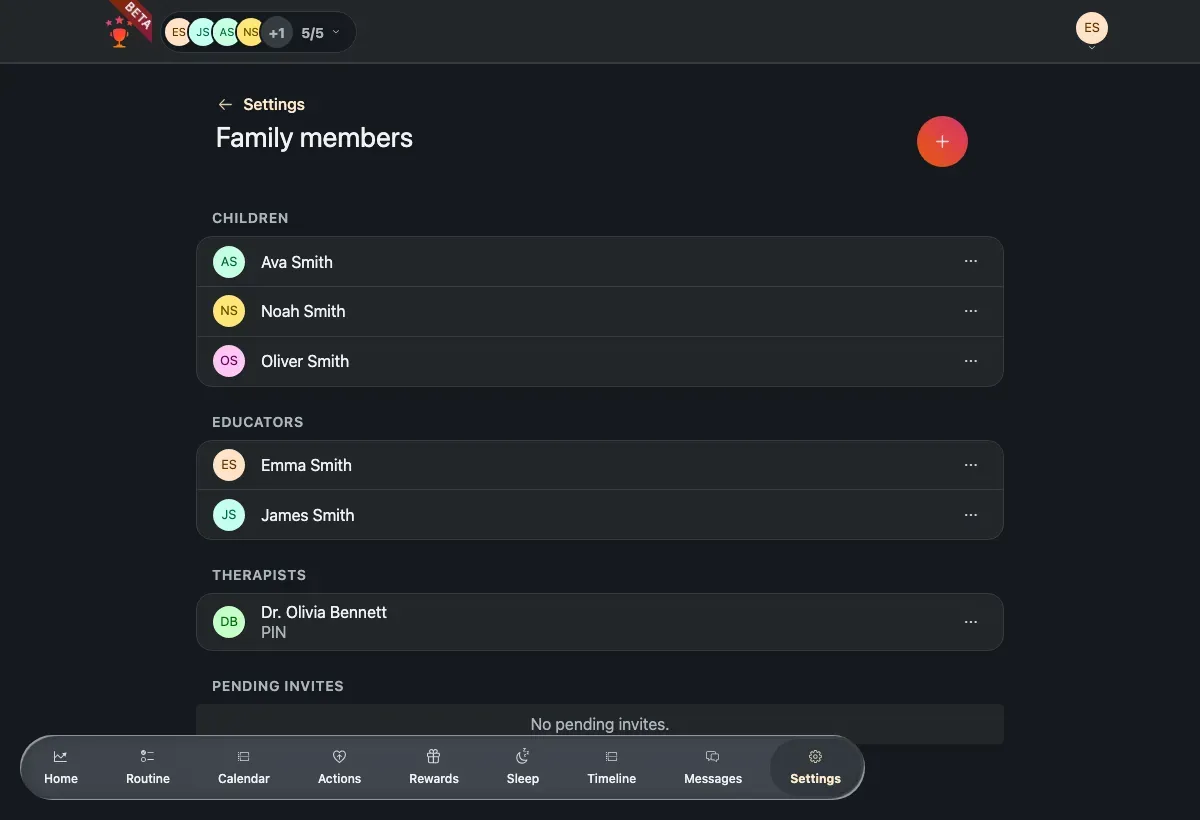
Members grouped into Children, Educators and Therapists.
Add a member
Section titled “Add a member”-
Tap the + button.
-
Choose the member type (child, educator or therapist).
-
Complete the short wizard to create the member or send an invite.
Fields in the wizard
Section titled “Fields in the wizard”After picking the member type, the wizard asks for:
- Name — the member’s display name. Required; at least 2 characters.
- Birthdate (children only) — required. The child must be at least 4 years old, and future dates aren’t accepted.
- Child with email (children only) — off by default. Turn it on when the child has their own email and will sign in with it; that reveals the Email field below.
- Email — required, and must be a valid address. For educators and therapists it’s where the invite is sent; for a child it only appears when Child with email is on, and is hidden otherwise.
Edit a member
Section titled “Edit a member”Open a member’s ⋯ menu to edit their in-family profile — display name, avatar colour and, for children, their birthdate. This opens the same editor as Profile & account, pointed at that member.
Remove a member
Section titled “Remove a member”Open the member’s ⋯ menu and choose Delete member, then confirm.
Invites
Section titled “Invites”For a pending invite you can copy the invite link to share it again, or open its menu and delete the invite to revoke it. Revoking invalidates any link you already shared.