
Redeem a reward
Redeeming a reward is the step that spends points. Until you redeem it, a reward definition just sits in the catalog. Redeeming records that a child cashed in the reward and deducts the points.
Redeem a reward
Section titled “Redeem a reward”-
Tap a reward’s card (or open the redeem form and pick a reward with the autocomplete).
-
Fill in the type-specific field:
- Time-based — enter a Duration in minutes.
- Money-based — enter a Value in euros.
- Single use — nothing extra; the flat cost applies.
-
Watch the points spent indicator update as you type.
-
Add optional Notes.
-
Under Apply to, choose the child it’s for.
-
Confirm the Date (defaults to now).
-
Tap Register reward. The points are deducted and the redemption is saved.
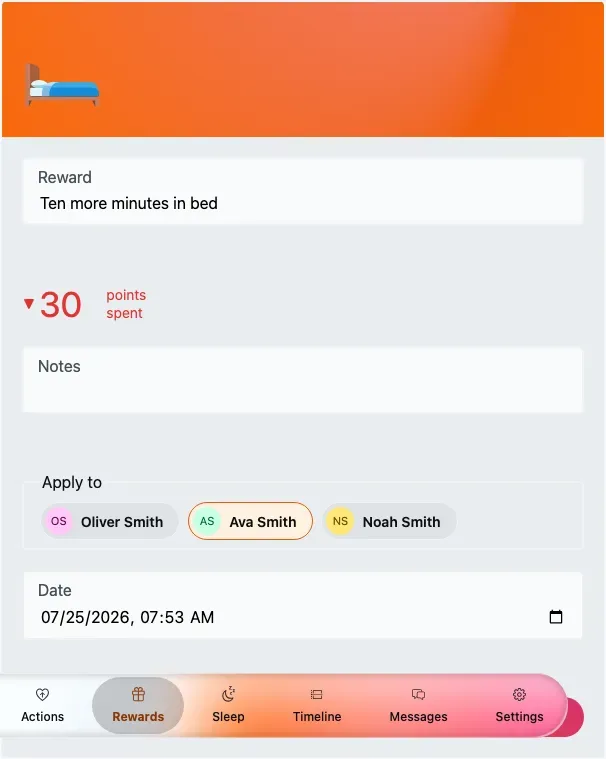
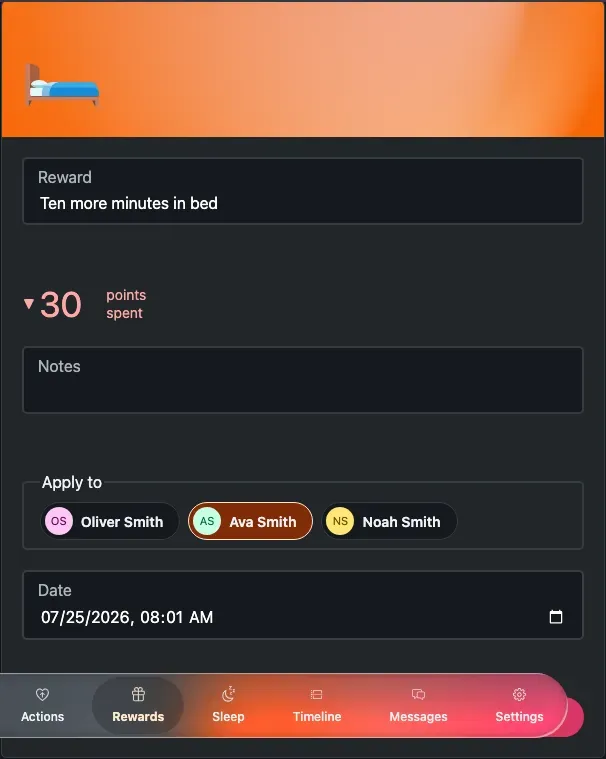
Redeeming a time-based reward — the points-spent indicator updates as you set the duration.
Redeem fields
Section titled “Redeem fields”The fields above:
- Reward — which reward you’re cashing in, chosen with the autocomplete.
- Duration (Time-based only) — the number of minutes. Required, greater than 0. Default 1.
- Value (€) (Money-based only) — the number of euros. Required, greater than 0. Default 1.
- Notes — optional.
- Apply to — the child it’s for. Shown for a new redemption only.
- Date — required. Defaults to now and can’t be set in the future.
For Single use rewards there’s no extra field — the flat cost applies. The live points spent indicator updates as you fill in the duration or value.
The reward timer
Section titled “The reward timer”Time-based rewards can also be redeemed with a live countdown instead of typing minutes by hand. The timer shows the reward’s emoji and a running point cost that grows every minute. When it ends, you review the total points spent, optionally add a note, and save with Register reward. A Fill in manually link switches to the standard form at any time.
Review, edit and delete history
Section titled “Review, edit and delete history”The History tab lists every redemption, newest first and grouped by day. Each entry shows the reward emoji and name, who it was for, any notes, and the points spent.
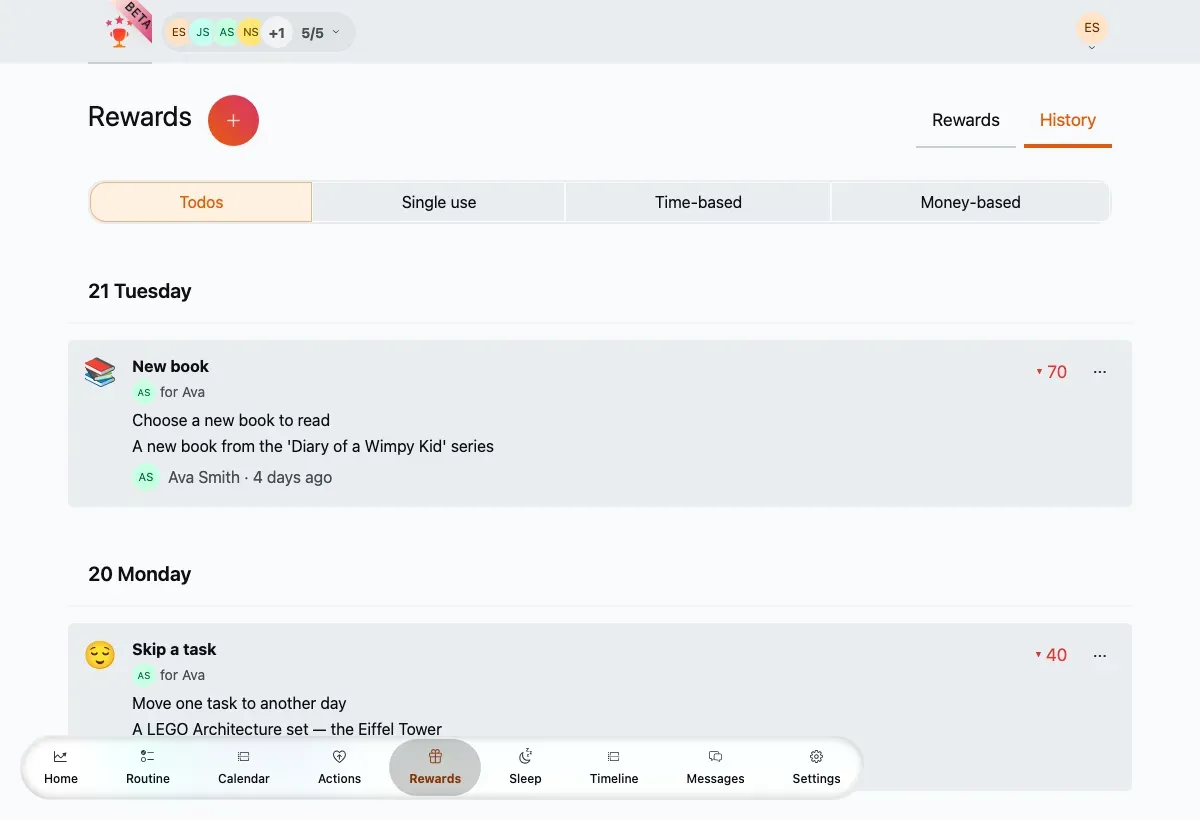
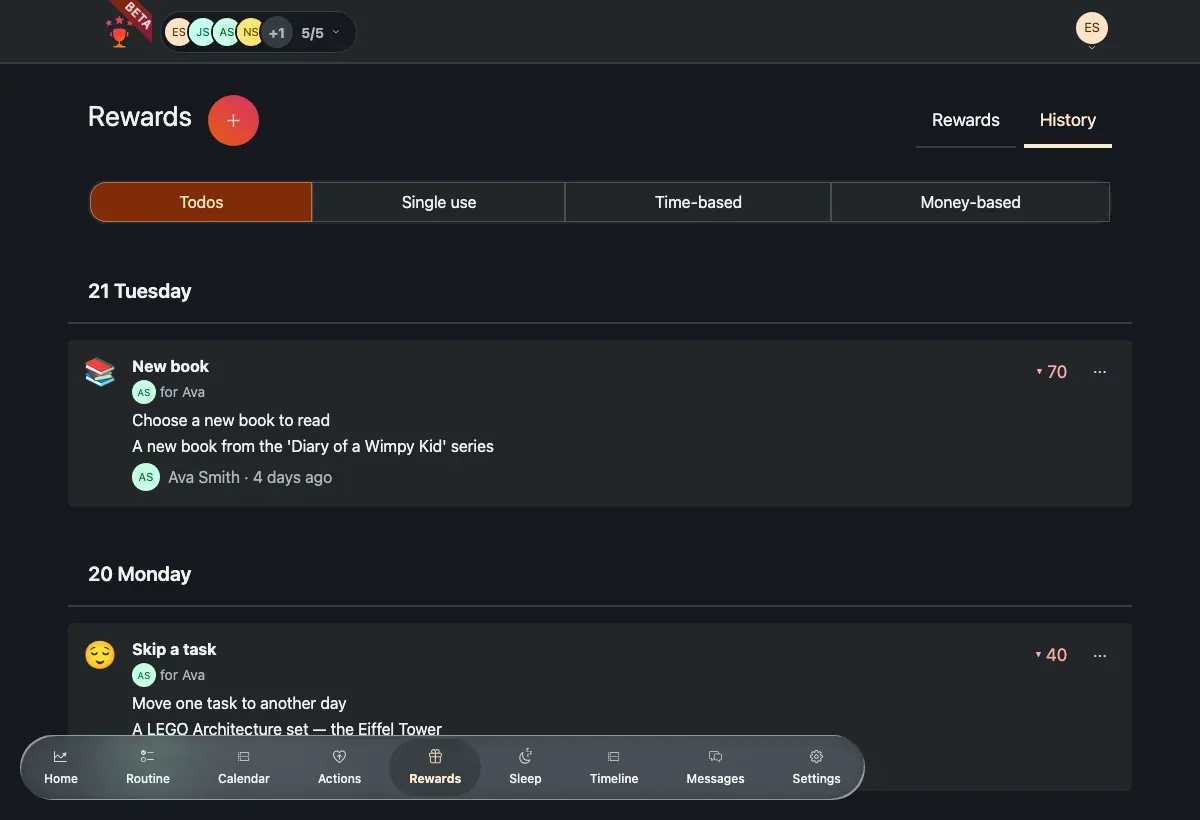
The redemption history, grouped by day with the points spent on each reward.
- Use the filter chips to narrow by reward type.
- Tap Load more to page through older entries.
- Open an entry’s ⋯ menu to edit or delete it. Deleting asks you to confirm and refunds the points.