
Create & edit a reward
Defining a reward adds it to the catalog so children can redeem it. Defining one does not move any points — points only change when someone redeems the reward.
Create a reward
Section titled “Create a reward”-
Open the Rewards tab and tap the + button next to the page title.
-
Enter a Name (required) and, optionally, a Description.
-
Choose the Type: Single use, Time-based or Money-based (see Reward types).
-
Set the Points value — the cost used to work out how many points a redemption takes. For Money-based rewards you can instead use your family-wide money value, in which case the points field is hidden.
-
Pick an emoji icon to make the reward easy to recognise on its card.
-
Under Applies to, select the members the reward is available for.
-
Tap Add reward. It appears in the catalog under its type.
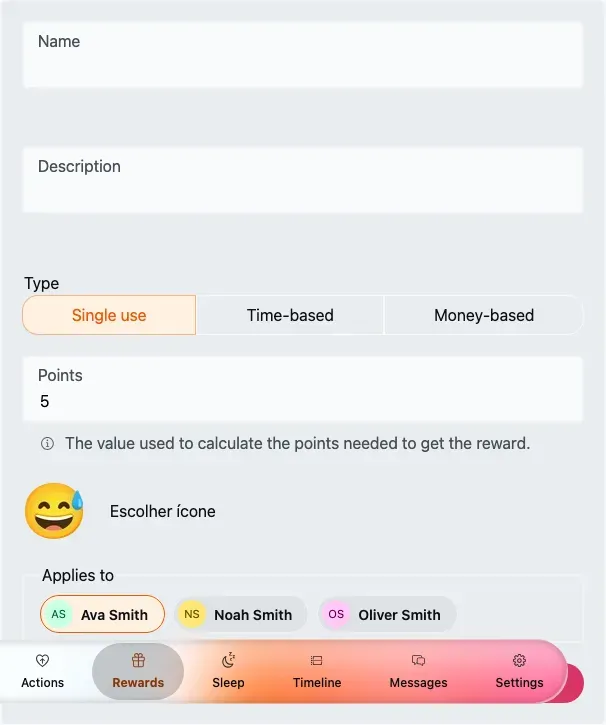
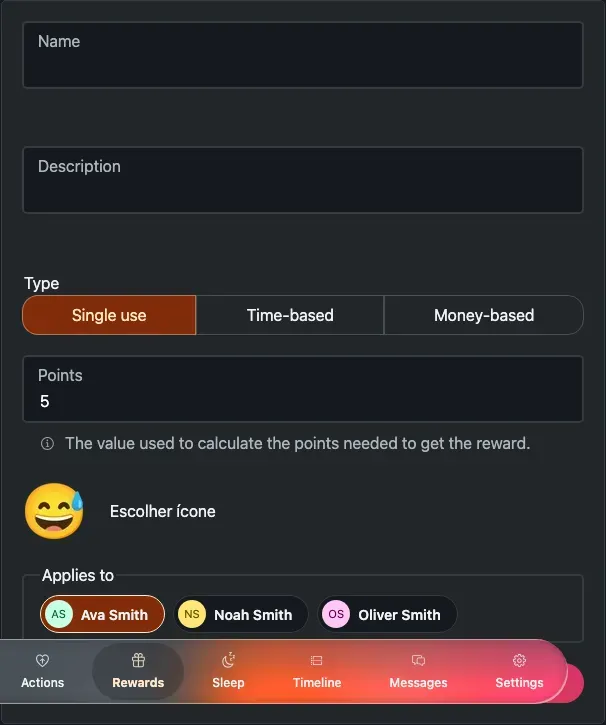
The Add reward form — name it, choose a type, set the cost, pick an emoji and choose who it applies to.
Reward fields
Section titled “Reward fields”The fields above:
- Name — required, at least 3 characters.
- Description — optional.
- Type — Single use, Time-based or Money-based. Required; defaults to Single use.
- Value calculation (Money-based only) — Use family value (the default) or Custom. Custom reveals the Points field.
- Points — the base cost (see the note below). Required, greater than 0. Default 5. Hidden for Money-based rewards that use the family value.
- Icon — the emoji on the reward card. Required. Default 🎨.
- Applies to — one or more members the reward is available for. Required, at least one; shown when more than one member is eligible.
Edit a reward
Section titled “Edit a reward”Open a card’s ⋯ (overflow) menu in the catalog and choose to edit. The form opens pre-filled, and the submit button reads Update reward. Editing a reward doesn’t change any redemptions that already happened.
Delete a reward
Section titled “Delete a reward”-
In the catalog, open the reward card’s ⋯ menu.
-
Choose Delete.
-
Confirm removing the reward in the dialog.