
Create & edit an action
Defining an action creates a reusable template you can register again and again. Defining one does not move any points — points only change when you register an occurrence.
Create an action
Section titled “Create an action”-
Open the Actions tab and tap the + button next to the page title.
-
Choose the Kind: Positive adds points, Negative subtracts them.
-
Enter a Name (required) and, optionally, a short Description so it’s clear what the action covers.
-
Under Applies to, select one or more members the action is available for. At least one is required.
-
Set the Points value (defaults to 5, from 1 to 100). This is the base used to calculate the final points when you register the action.
-
Tap Add action. You’re returned to the library, where the new action appears in its Positive or Negative group.
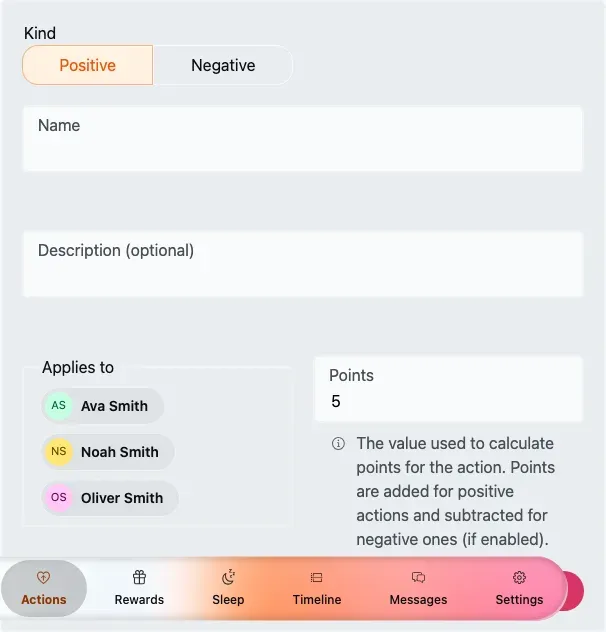
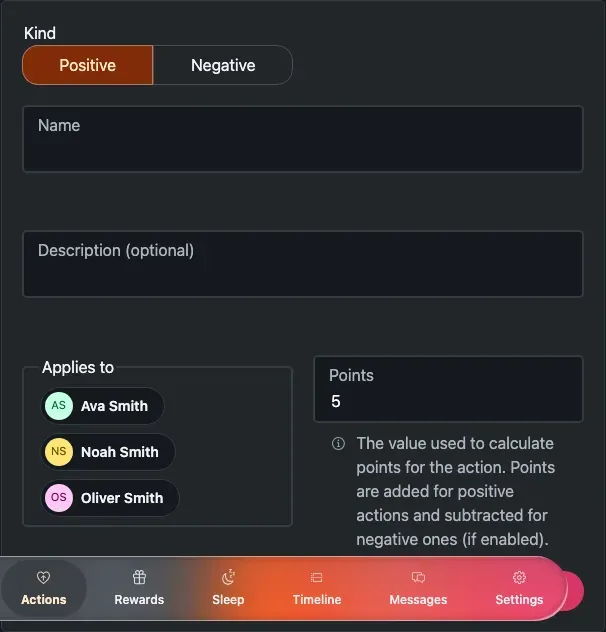
The Add action form — pick a kind, name it, choose who it applies to, and set the points.
Action fields
Section titled “Action fields”The fields above:
- Kind — Positive adds points, Negative subtracts them. Required; defaults to Positive.
- Name — required, at least 2 characters.
- Description — optional.
- Applies to — one or more members the action is available for. Required, at least one; a new action starts with nobody selected.
- Points — the base value (see the note below). Required, 1–100. Default 5. Hidden for Negative actions when your family has negative points turned off.
Edit an action
Section titled “Edit an action”Open a row’s ⋯ (overflow) menu in the library and choose to edit. The form opens pre-filled with the action’s current details, and the submit button reads Update action. Editing the definition doesn’t change any points that were already registered — it only affects future occurrences.
Delete an action
Section titled “Delete an action”-
In the library, open the action row’s ⋯ menu.
-
Choose Delete action.
-
Confirm in the dialog that asks whether you’re sure you want to delete the action.