
Your first setup
The first time you sign in, TaDone guides you through a short setup. It takes a couple of minutes and ends with a running family you can start using. There are four steps: accept the terms, name your family, add your first members, and pick a profile to enter as.
1. Accept the Terms of Use
Section titled “1. Accept the Terms of Use”The first screen shows the usage agreement and privacy policy. Because TaDone is for families, the adult setting it up has to confirm a few things before a family can be created.
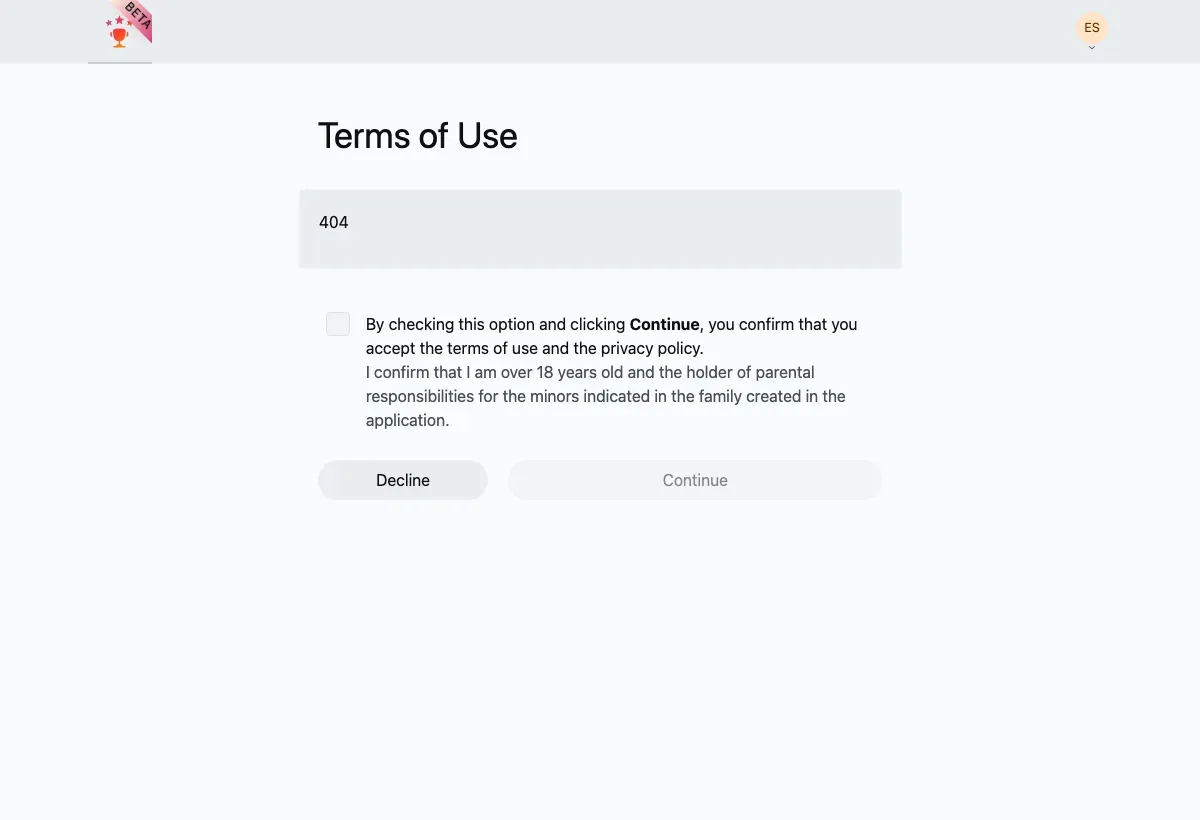
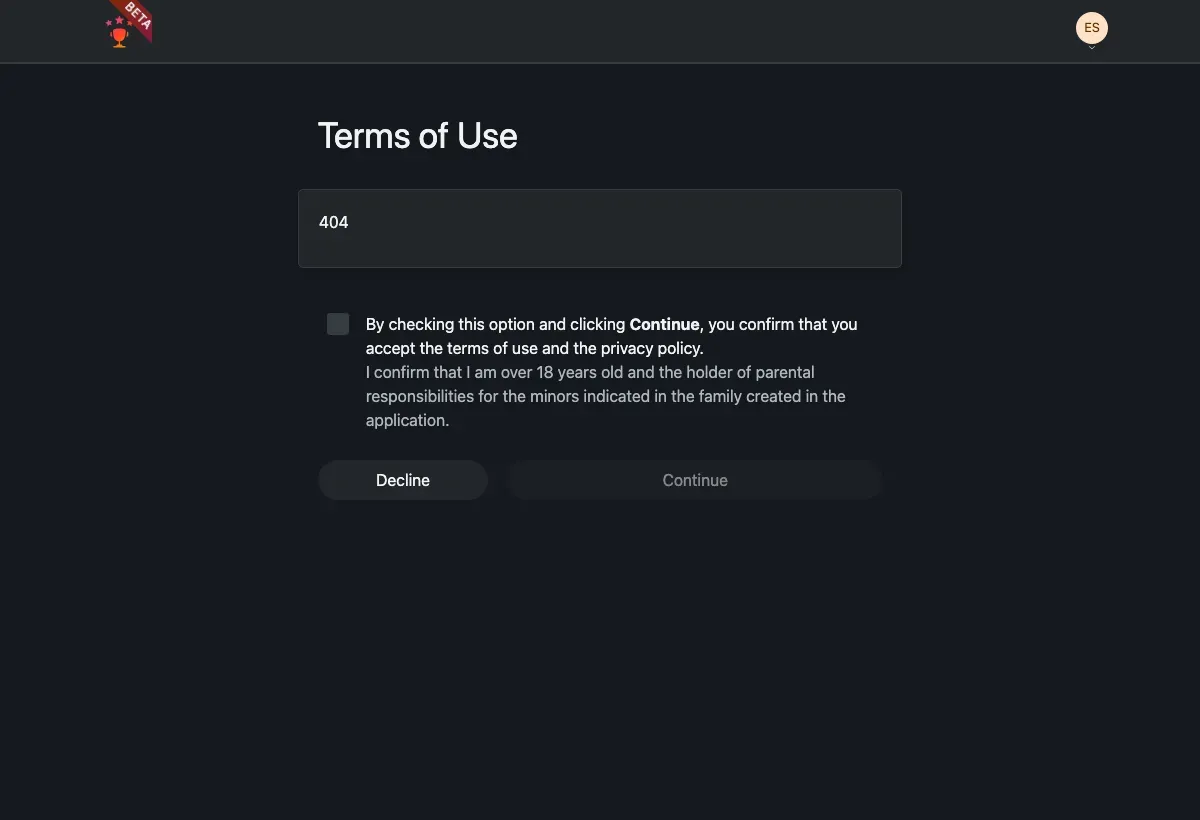
You confirm you’re over 18 and the legal guardian of the children you’ll add.
-
Read the agreement.
-
Tick the checkbox to accept the terms and confirm you’re over 18 and the children’s guardian.
-
Press Continue. (Decline signs you out.)
2. Create your family
Section titled “2. Create your family”Your family is the container everything else lives in — children, guardians, tasks, routines, and rewards all belong to it. You give it a name and TaDone creates it.
-
Enter a family name (2–100 characters) — most people use their surname, like “Rodrigues”.
-
Press Continue. TaDone creates the family and moves you on to add members.
3. Add your first members
Section titled “3. Add your first members”Next you build out who’s in the family. The Add members screen groups everyone into Children, Guardians, and Therapists, with any pending invites shown below. Tap the + to open a short wizard that first asks who you’re adding.
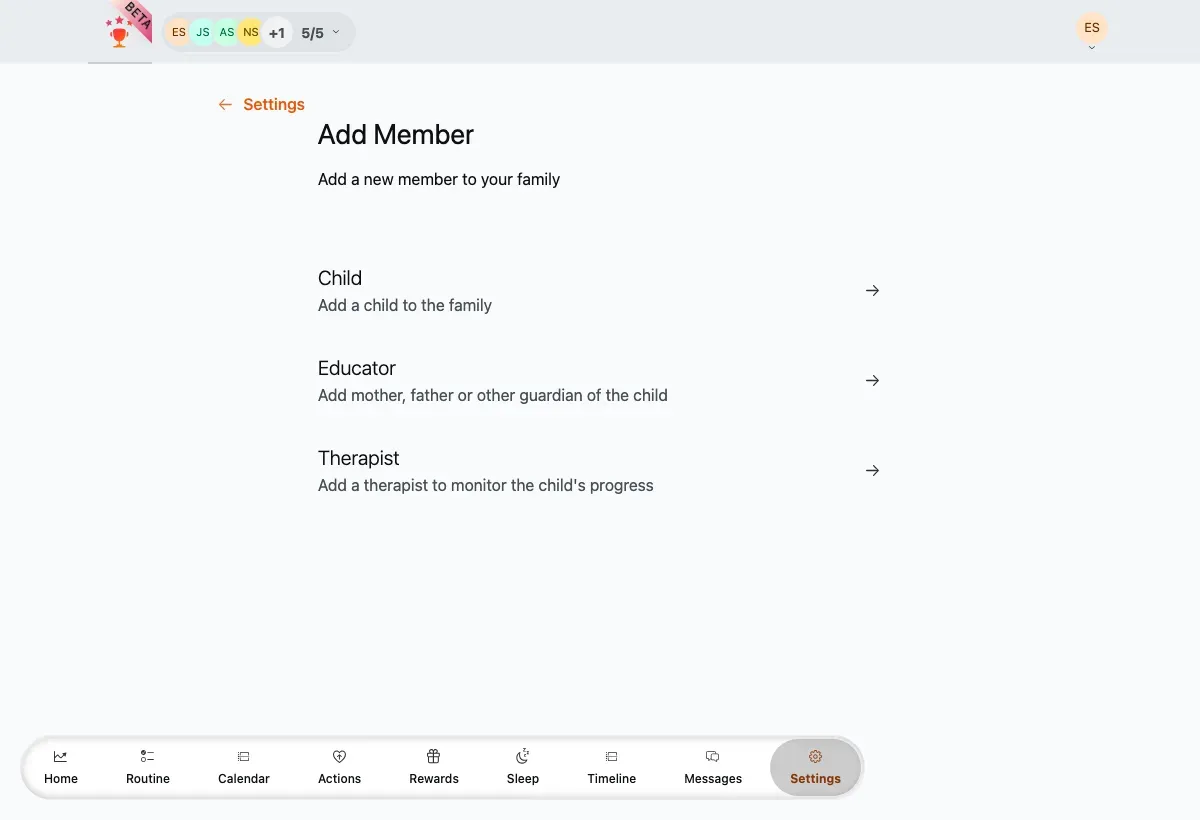
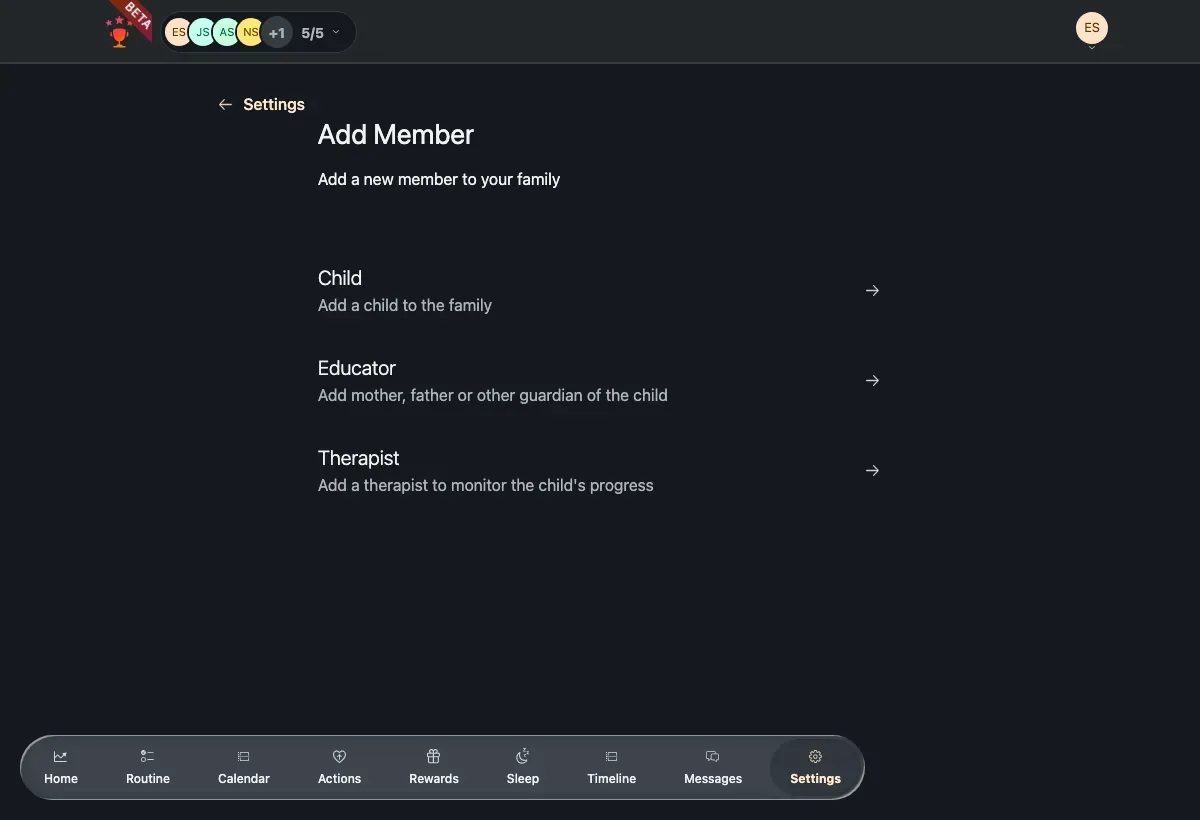
Add a child
Section titled “Add a child”Most families start here. Choose Child, then:
-
Enter the child’s name and birthdate. A child must be at least 4 years old — TaDone uses the birthdate to tailor the experience to their age.
-
Leave child has email off to create the profile directly (the child just picks their avatar later — no login of their own). Only an older child with their own email needs it turned on.
-
Continue to a short create-a-plan questionnaire, which sets up the child’s starting routines, actions, and rewards. You can go through it or choose Create manually to skip it and build the plan later.
The child’s profile is created and appears right away on the members list. For the full walkthrough — including exactly what the questionnaire asks — see Add your first child.
Add another guardian
Section titled “Add another guardian”To bring in a second parent or another adult, choose Educator, enter their name and email, and press Create link. Share the invite link with them — they join by opening it and signing in with that same email. (More on this in Members & invitations.)
Finish up
Section titled “Finish up”-
Repeat for everyone you want to add now — you don’t have to add the whole family yet; adding members works the same way later from Settings.
-
When you’re ready, press TaDone! Ready to start to finish.
4. Choose who’s using TaDone
Section titled “4. Choose who’s using TaDone”After setup, TaDone shows a profile picker every time you open the app. You choose which member to enter as — your own guardian profile or one of the children — and each role lands in its own area.
-
Tap a profile avatar. Guardians and children each have their own tile.
-
When a guardian enters a child’s profile, you can optionally turn on Lock profile so the child can’t switch away to someone else’s.
-
Press Enter. A guardian goes to the family dashboard; a child goes straight to their tasks.
You’re set up
Section titled “You’re set up”That’s it — your family is live. Here’s where to head next: