
The routine board & completing tasks
The Routine board is the family’s shared view of a single day. Every member who has tasks gets their own column, tasks are grouped into day periods, and a date slider moves you between days.
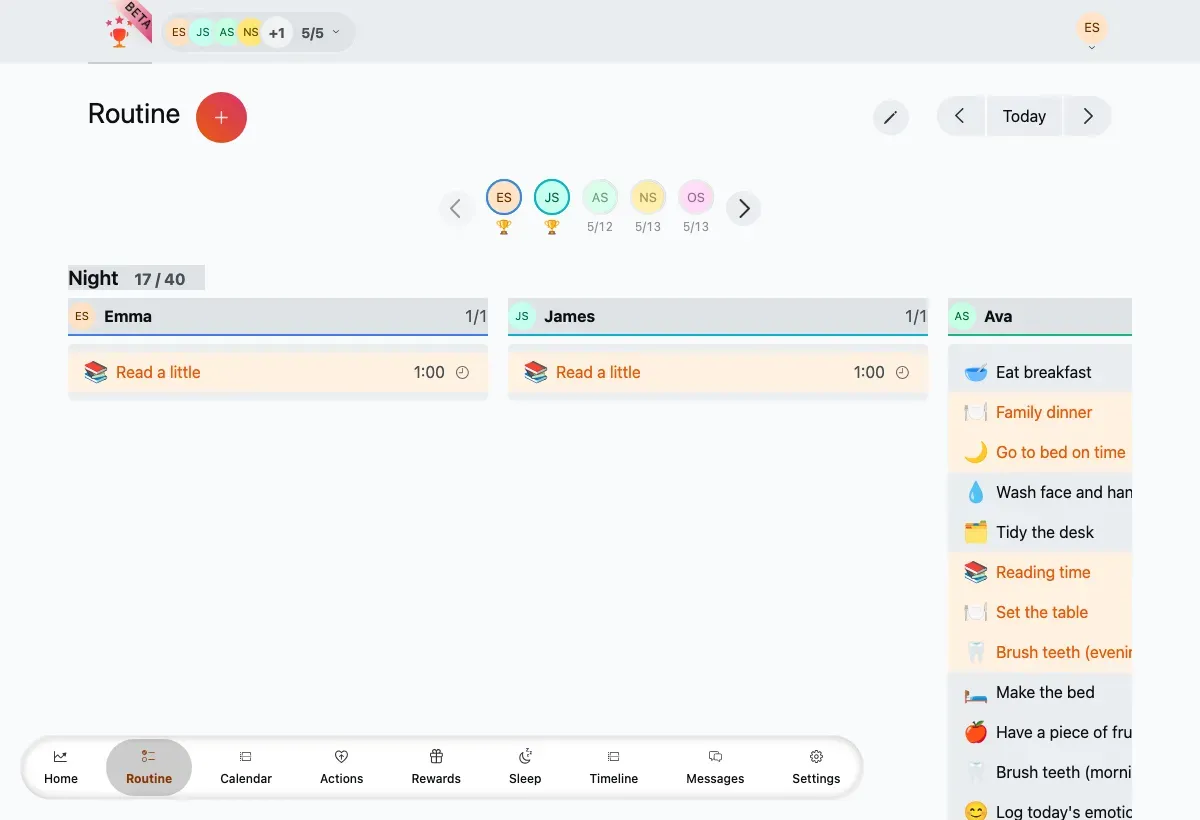
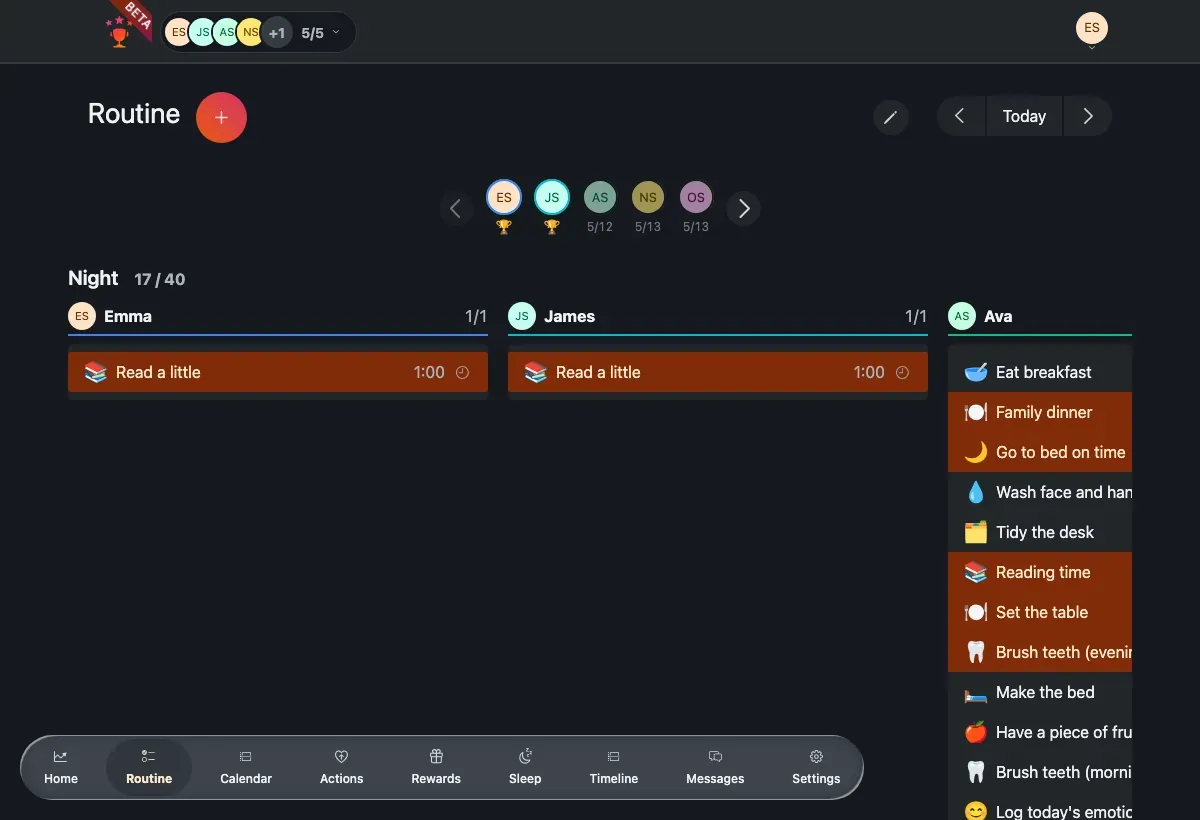
Each column is a family member; the grey period headers (Morning, Afternoon, Late afternoon, Evening) show a done/total count for the whole family.
Reading the board
Section titled “Reading the board”- Member columns — one per member who has tasks enabled. Their name sits at the top of each column.
- Period headers — tasks are grouped into periods such as Morning, Afternoon,
Late afternoon and Evening. Each header shows how many are done out of the total
(for example
3 / 5). - Per-member progress — the avatar row near the top shows each member’s done/total for the day, and a trophy appears once a member has finished everything.
- Date slider — use the arrows (or the calendar popover) to move between days, up to one month ahead. Today jumps back to the current day.
On a narrow screen the columns don’t all fit, so the board shows a member pager — tap an avatar, or the arrows, to move between members one column at a time.
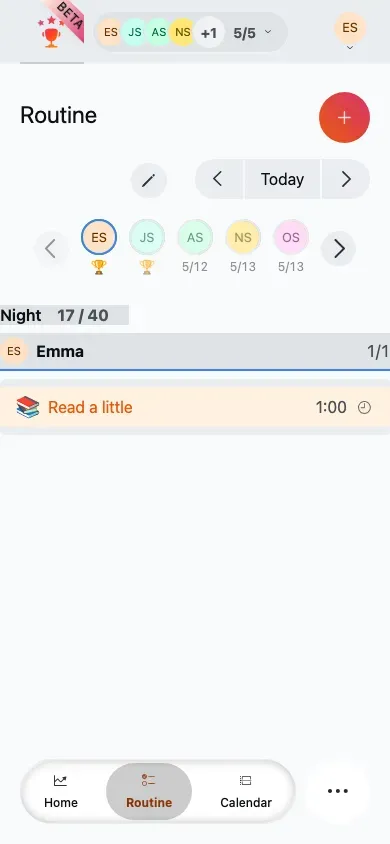
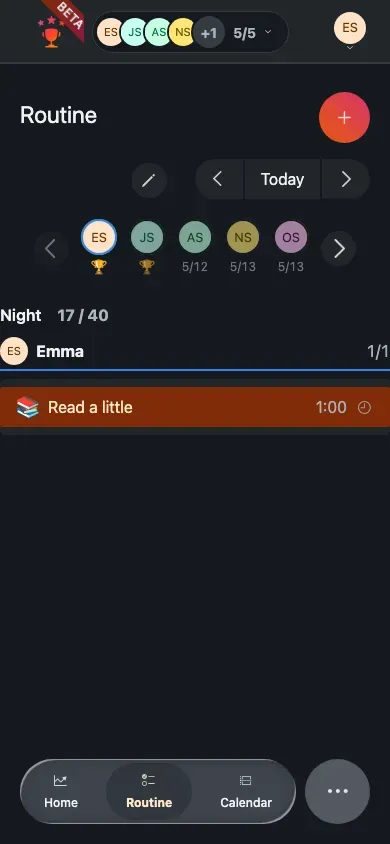
On mobile, the pager with progress rings replaces the side-by-side columns.
Marking a task done
Section titled “Marking a task done”-
Find the task in a member’s column.
-
Tick its checkbox.
-
The task flips to done, the member’s day progress and points update, and the period count goes up.
Parents can tick tasks done here too, not just children — handy for confirming something that happened away from a device.
Edit mode: reorder and remove
Section titled “Edit mode: reorder and remove”Toggle the pencil button in the header (Edit routine) to rearrange the day.
-
Turn on edit mode. Empty periods become visible drop targets.
-
Drag a task to reorder it within that member’s own periods. Moving a task that came from a routine asks whether the change is for today only or should move in the future too.
-
Use a task’s edit menu to open its editor, or to delete it.
Adding from the board
Section titled “Adding from the board”Tap the + (Add) button next to the Routine title to open the add screen, where you choose a single task or a recurring routine. See Creating tasks & routines.
The child’s view
Section titled “The child’s view”Children see their own routine for the day at Routine — a single-member view built for them. Task cards are grouped by period and each card shows its points, icon, start time and duration. A day-score header tracks points toward the day’s total.
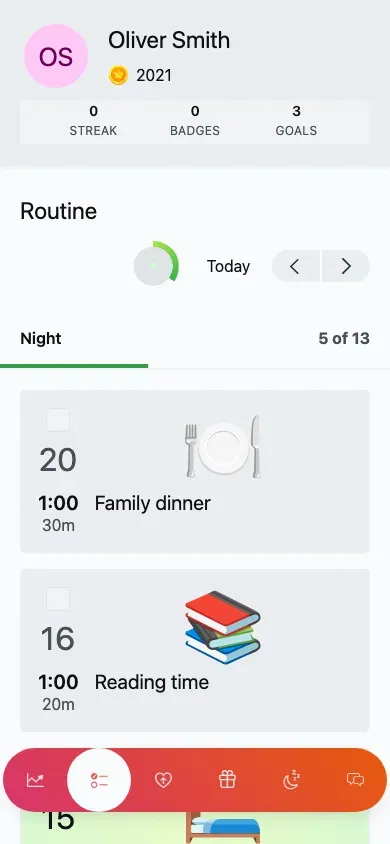
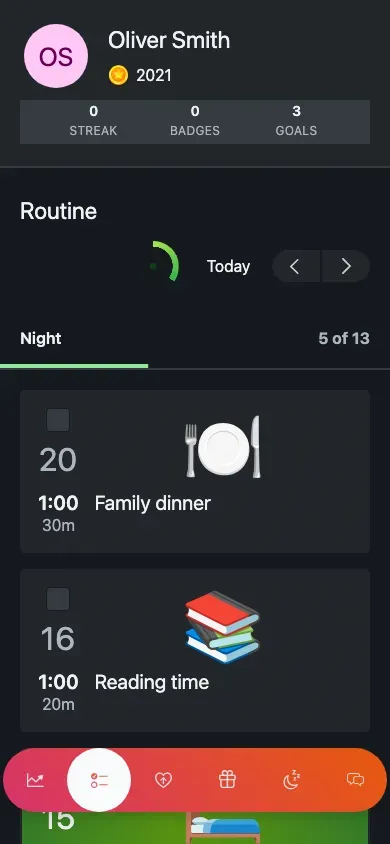
Sofia’s routine: the header shows her points and streak, and each card carries its own points and start time.
-
The child opens Routine (their default screen).
-
They tap a task card’s checkbox to mark it done and earn its points, with a little sound.
-
The day-score bar fills as they go. When everything is done it turns into a trophy with a congratulations message.
If a child sees a warning that routine tasks may be missing, the routine templates failed to load — reopening the screen usually fixes it.