
Members & invitations
The members directory is where you manage everyone in the family. Open it from Settings → Family members.
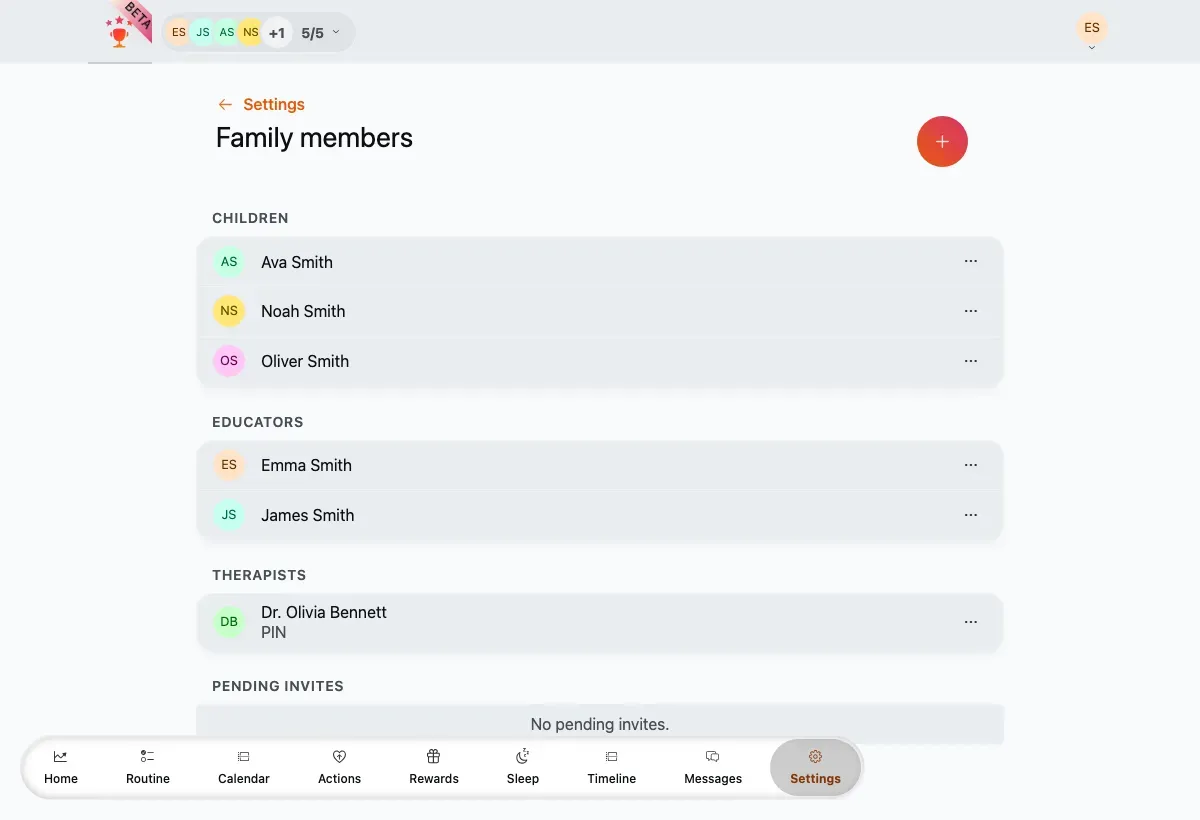
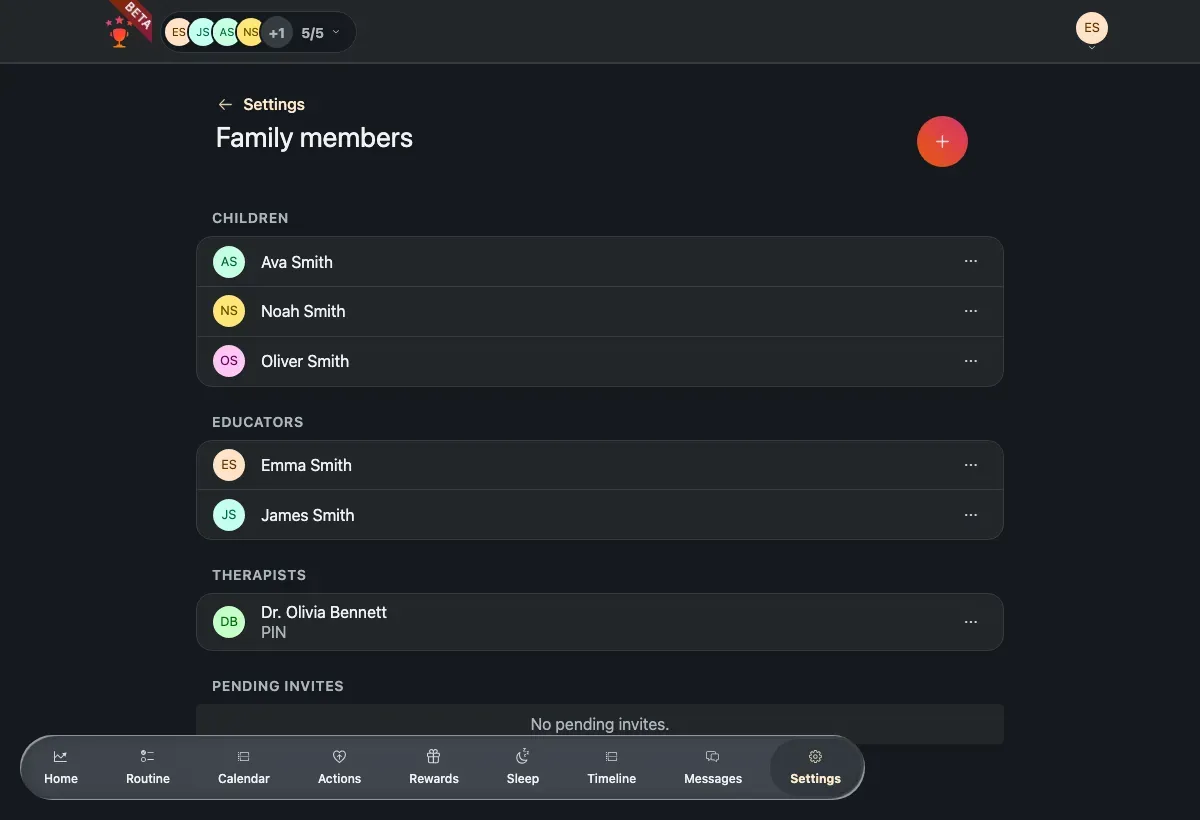
Members are grouped by role, with a per-row options menu (…) on each.
Members are grouped into Children, Educators (guardians — parents and other adults), and Therapists, with a Pending invites section for links that have been sent but not yet accepted. The guardian who created the family carries a Manager badge and can’t be removed.
Add a member
Section titled “Add a member”Tap the + on the members list to start the add-member wizard. It first asks what kind of member you’re adding.
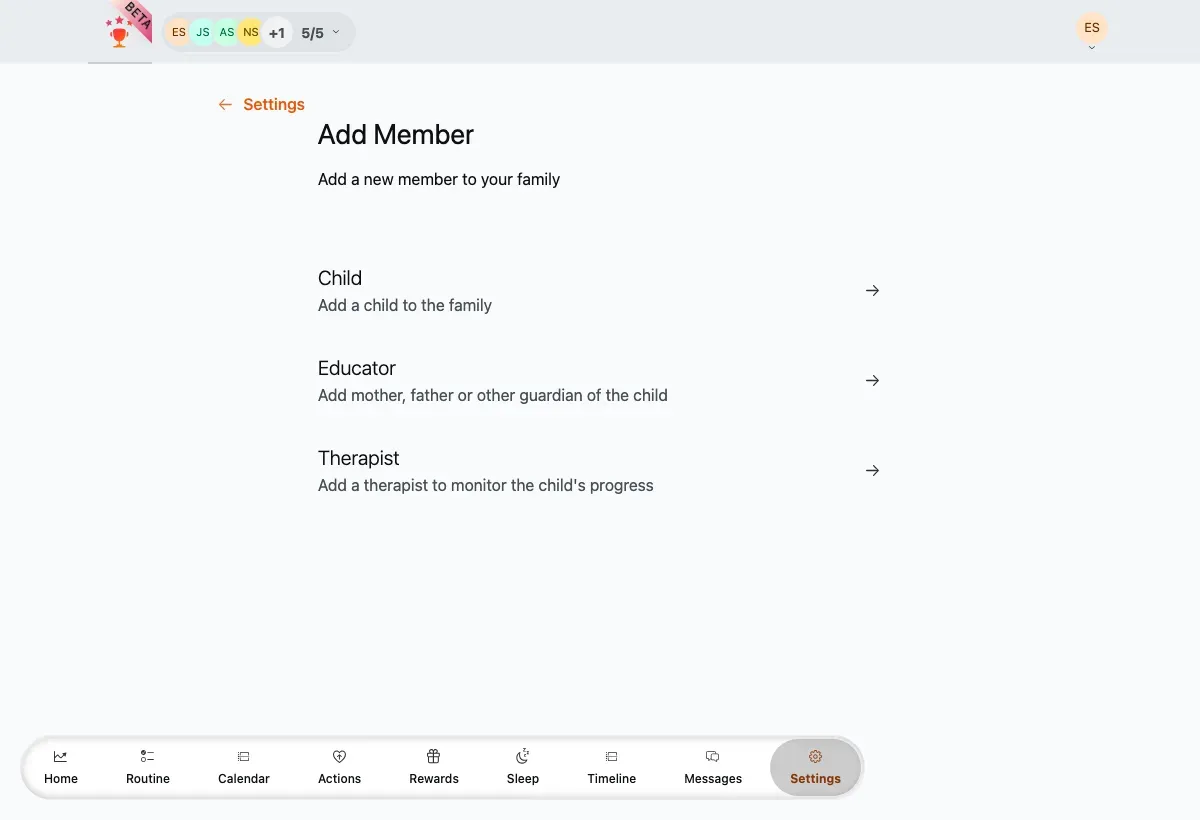
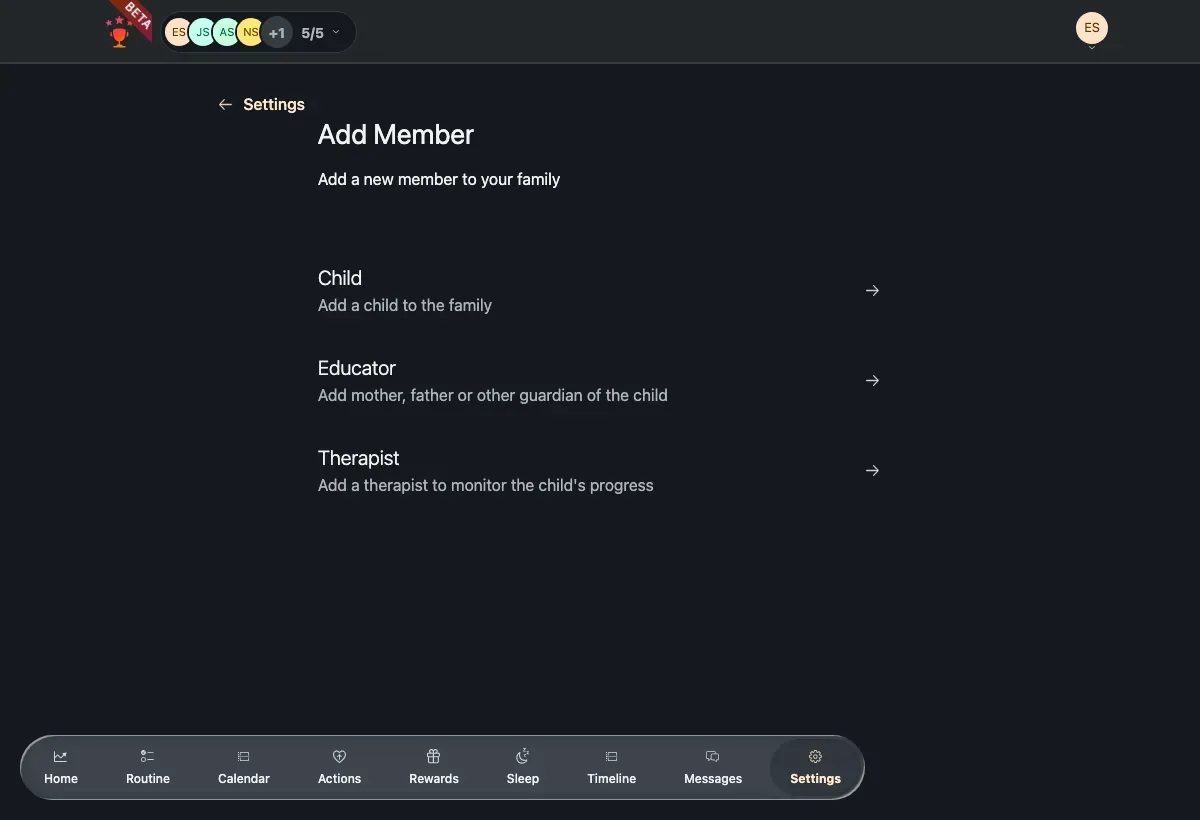
- Child — add a child to the family.
- Educator — add a mother, father, or other guardian of the child.
- Therapist — add a therapist to follow the child’s progress (shown when this option is enabled for your family).
Add a child
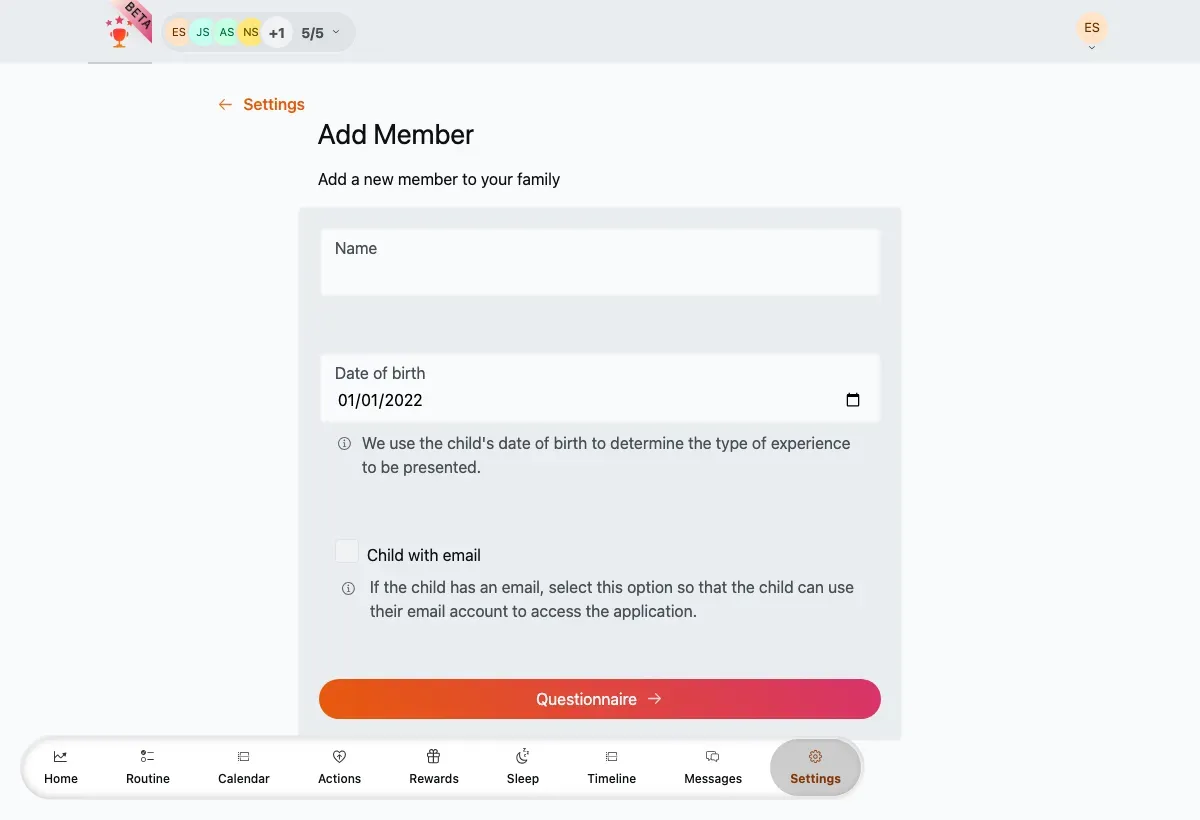
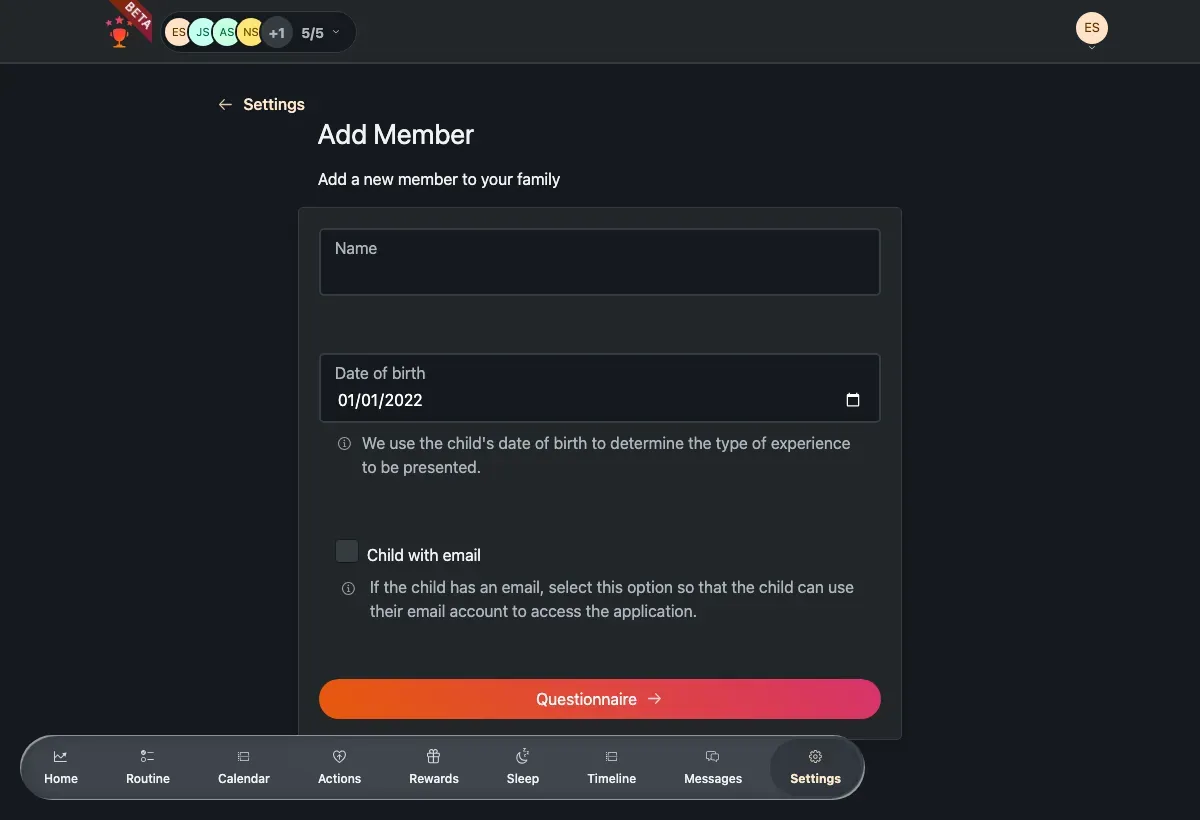
Section titled “Add a child”Choose Child and fill in their details.
-
Enter the child’s name.
-
Set their birthdate. A child must be at least 4 years old — the picker won’t accept a younger date. TaDone uses the birthdate to tailor the experience to the child’s age.
-
Leave child has email off to create the profile directly (the child just picks their avatar on the profile picker — no login of their own). Turn it on only for an older child who has their own email and should sign in themselves; TaDone then generates a join link for them, the same way it does for a guardian.
-
Continue to a short create-a-plan questionnaire (see below), which seeds the child’s starting routines, actions, and rewards.
-
The child’s profile is created — it appears immediately on the profile picker and in the members list.
Add a guardian
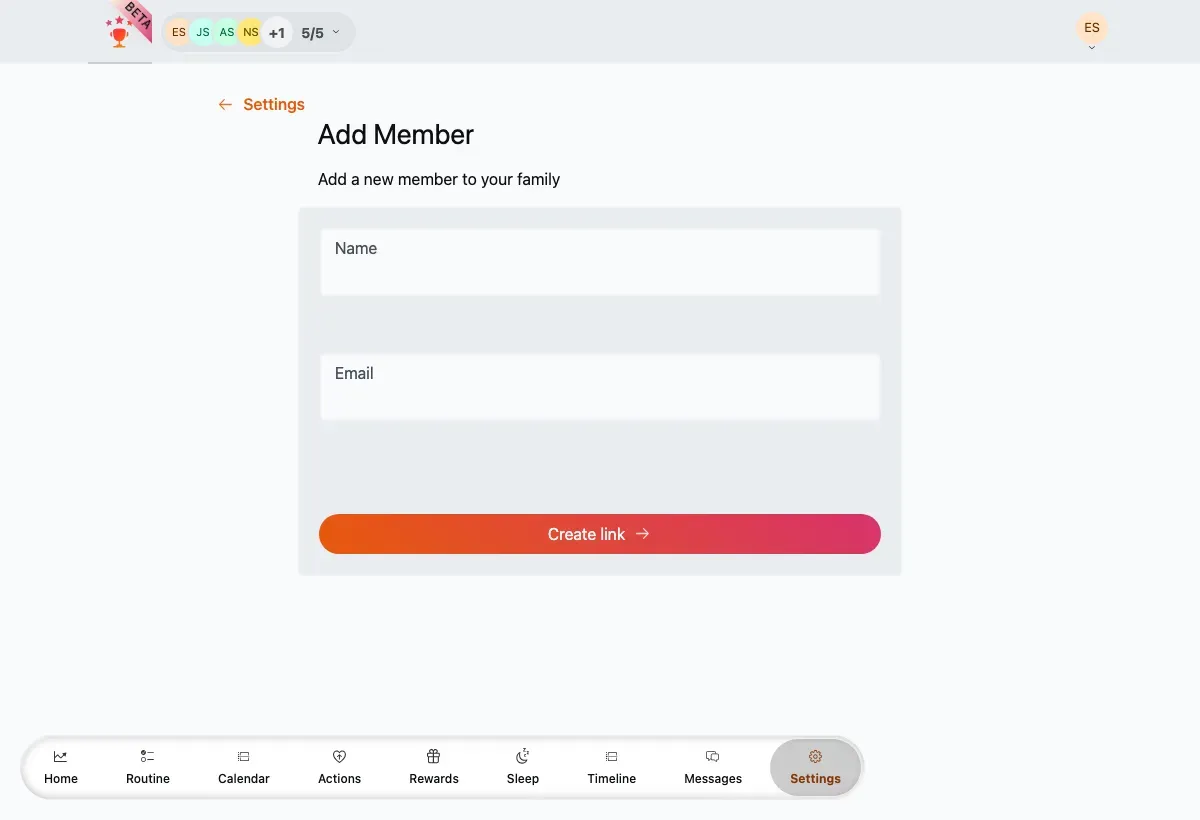
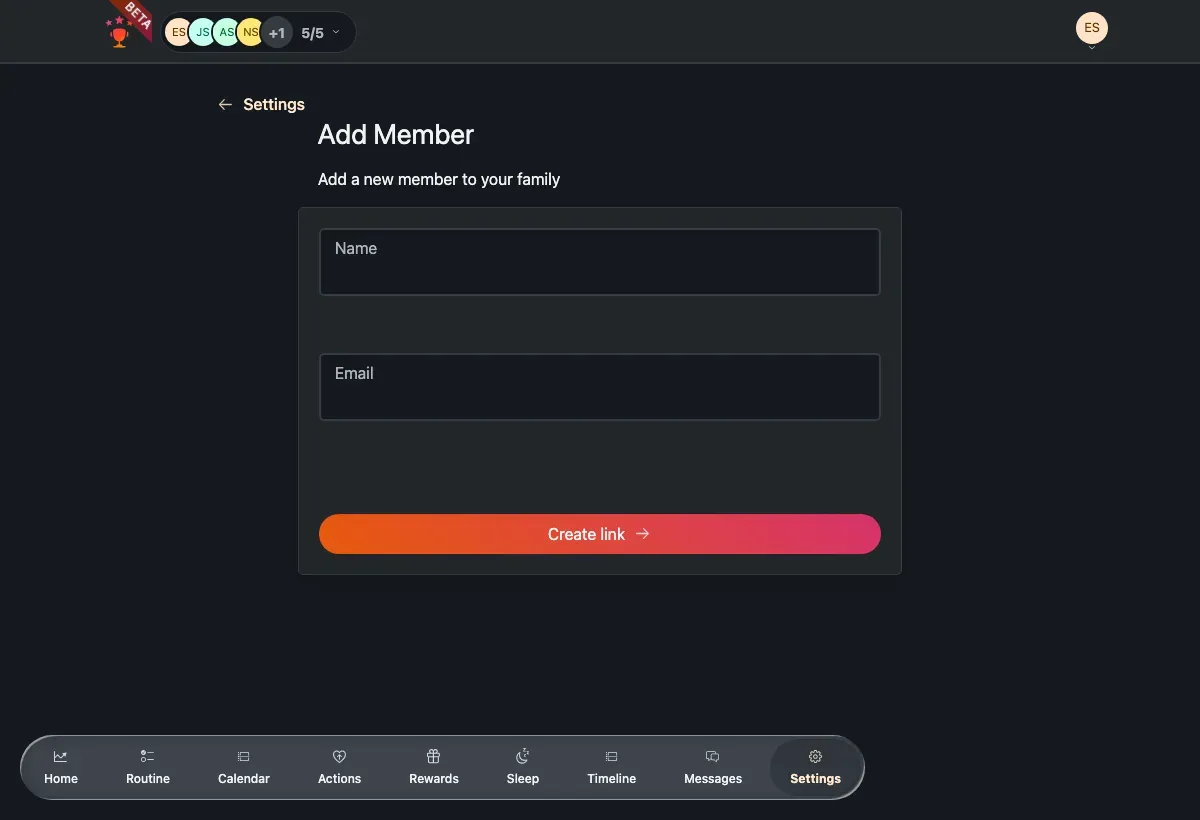
Section titled “Add a guardian”Choose Educator to invite another adult. Rather than creating the profile directly, TaDone generates a link they use to join.
-
Enter the guardian’s name and email.
-
Press Create link.
-
On the confirmation screen, copy the invite link and send it to them (by message, email, or however you like).
The child setup questionnaire
Section titled “The child setup questionnaire”When you add a child, the last step is a short questionnaire — the app calls it Create a plan. Its job is to give the child a ready-made starting setup instead of an empty profile: it tailors their initial routines, actions, and rewards — together, their plan.
It opens on an intro screen that lists what it will set up, then offers two paths:
- Start — walk through the steps and choose what the child begins with.
- Create manually — skip it. The profile is created straight away with no starter content, and you build routines, actions, and rewards yourself later.
If you start it, a progress stepper takes you through:
-
Routines — the daily tasks the child earns points for, grouped by time of day and pre-filled with a sensible default set you can trim or extend.
-
Actions — one-off behaviours worth recognising, split into positive and negative. Optional — you can leave it empty.
-
Rewards — what points can be spent on (single-use, time-based, and money-based templates). Also optional.
-
Confirm — a summary of your choices, each editable, then Create to finish.
Your answers are kept as you go, so a reload part-way through won’t lose them, and the whole plan can be changed later from the child’s pages — nothing here is permanent.
How invitations work
Section titled “How invitations work”An invite ties a join link to the email you entered, so only that person can use it. Here’s the full round trip:
-
You create the invite (above) and share the link.
-
The invitee opens the link. If they’re logged out, TaDone asks them to sign in with the same email the invite was sent to.
-
Once signed in, they see a screen naming your family with Accept and Decline buttons.
-
When they accept, they join the family as a guardian.
Until an invite is accepted it shows under Pending invites on the members list. From its options menu (…) you can copy the link again or delete the invite — deleting it stops the shared link from working.
Edit a member’s profile
Section titled “Edit a member’s profile”Open any member’s options menu (…) and choose Edit profile to update their details — name, birthdate, avatar, and more.
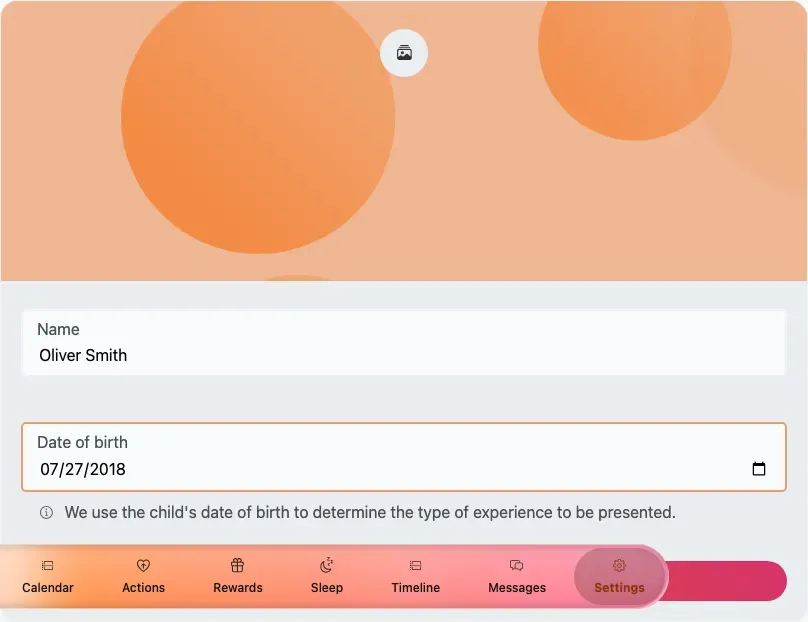
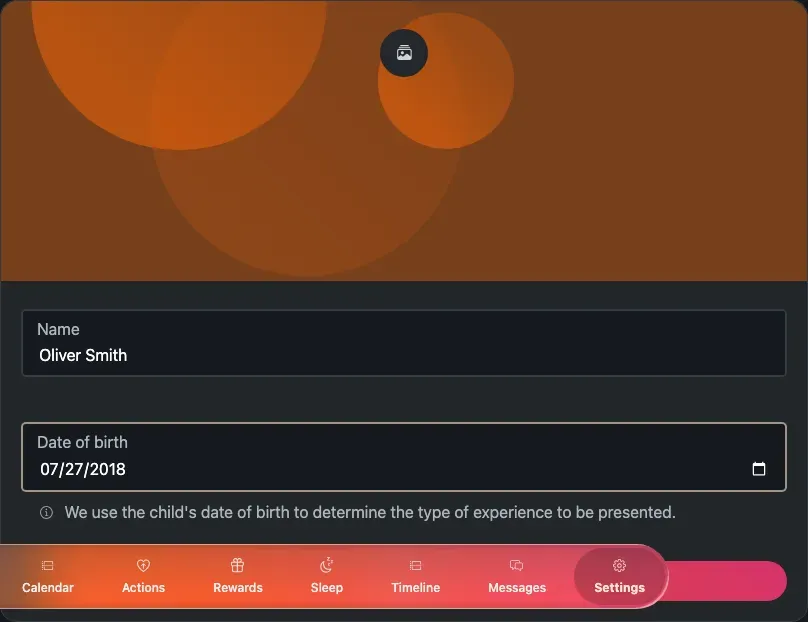
Make your changes and save. This is the same editor used elsewhere in the app, so it works identically whether you’re editing a child or a guardian.
Remove a member
Section titled “Remove a member”To remove someone, open their options menu (…) and choose Delete member, then confirm in the warning dialog.