
Add your first child
A child is the centre of everything TaDone does — routines to complete, actions to recognise, points to earn, and rewards to spend them on. This page walks you through adding your first child end to end: their details, then a short create-a-plan questionnaire that gives them a ready-made starting setup.
You’ll do this during first setup, but it works exactly the same way any time later from Settings → Family members.
1. Open the add-member wizard
Section titled “1. Open the add-member wizard”From the members list (or the Add members step during first setup), tap the + to start the wizard, then choose Child.
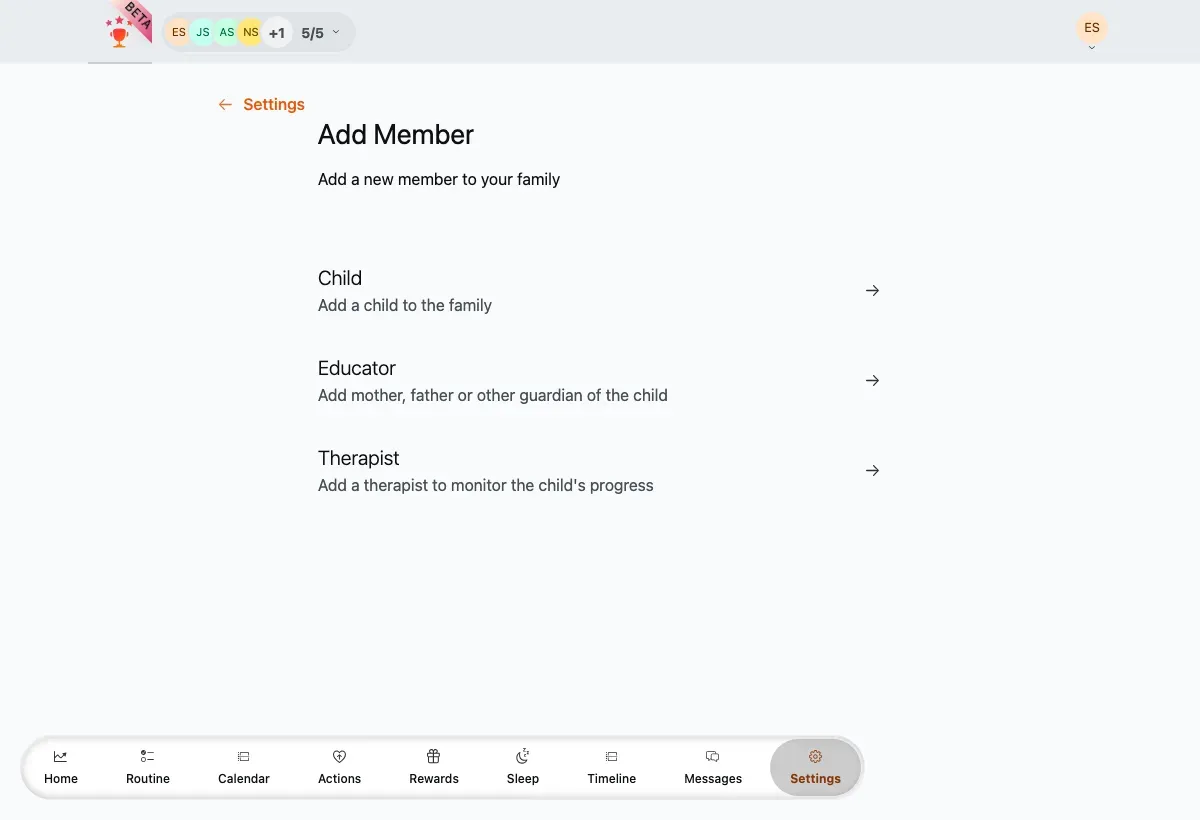
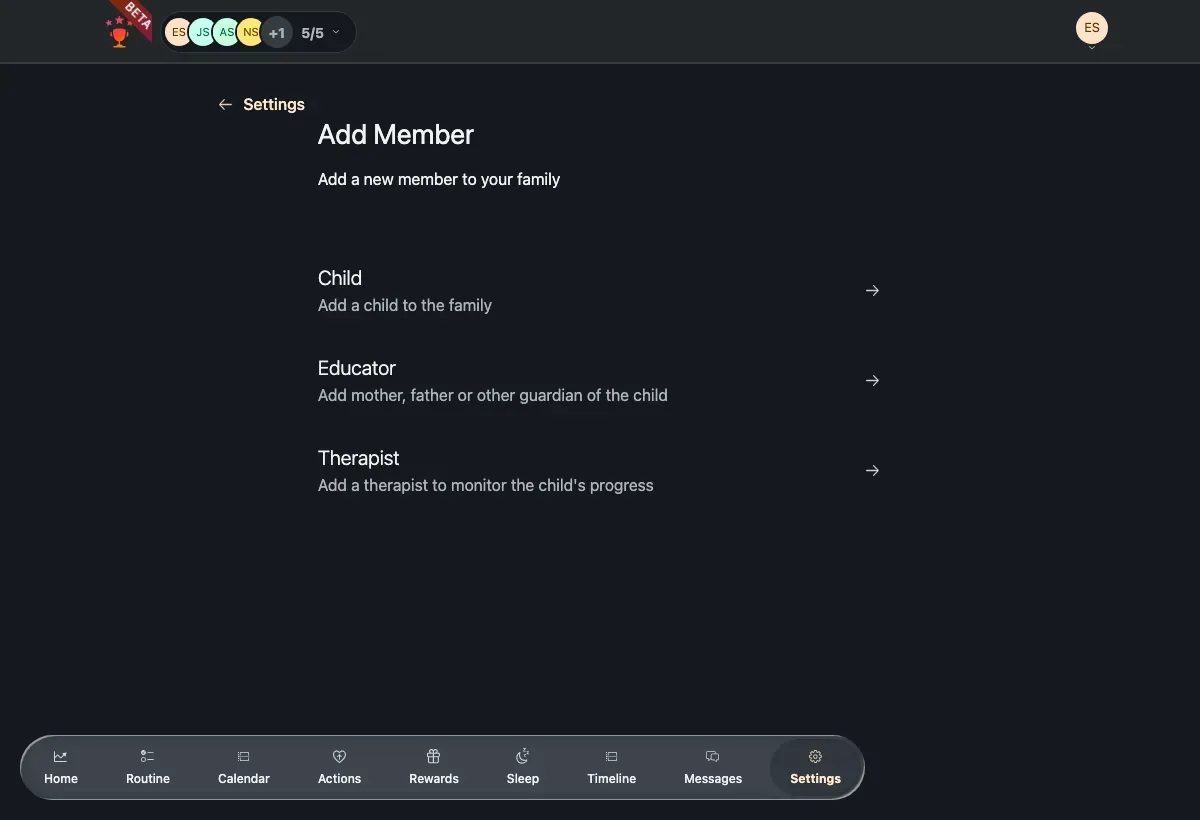
- Child — the profile you’re creating here.
- Educator — a parent or other guardian (invited by email instead).
- Therapist — someone who follows the child’s progress (only when enabled for your family).
2. Enter the child’s details
Section titled “2. Enter the child’s details”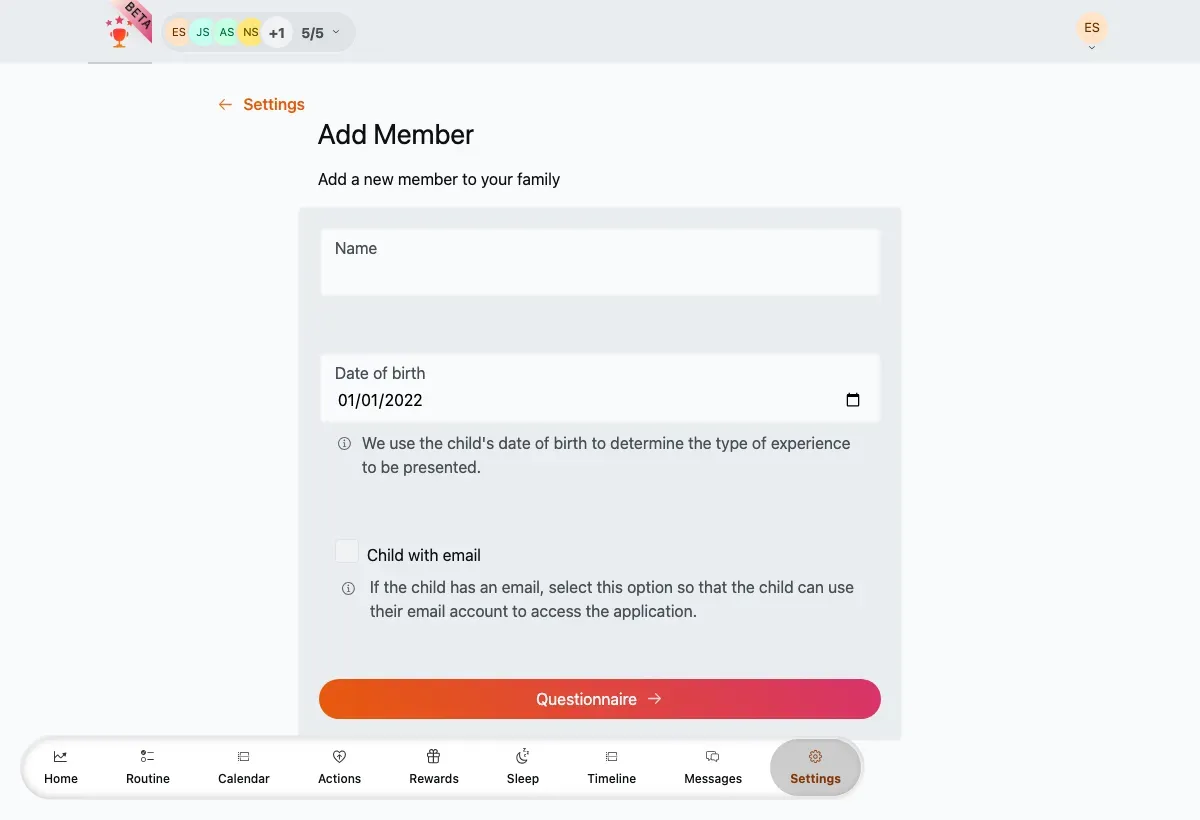
-
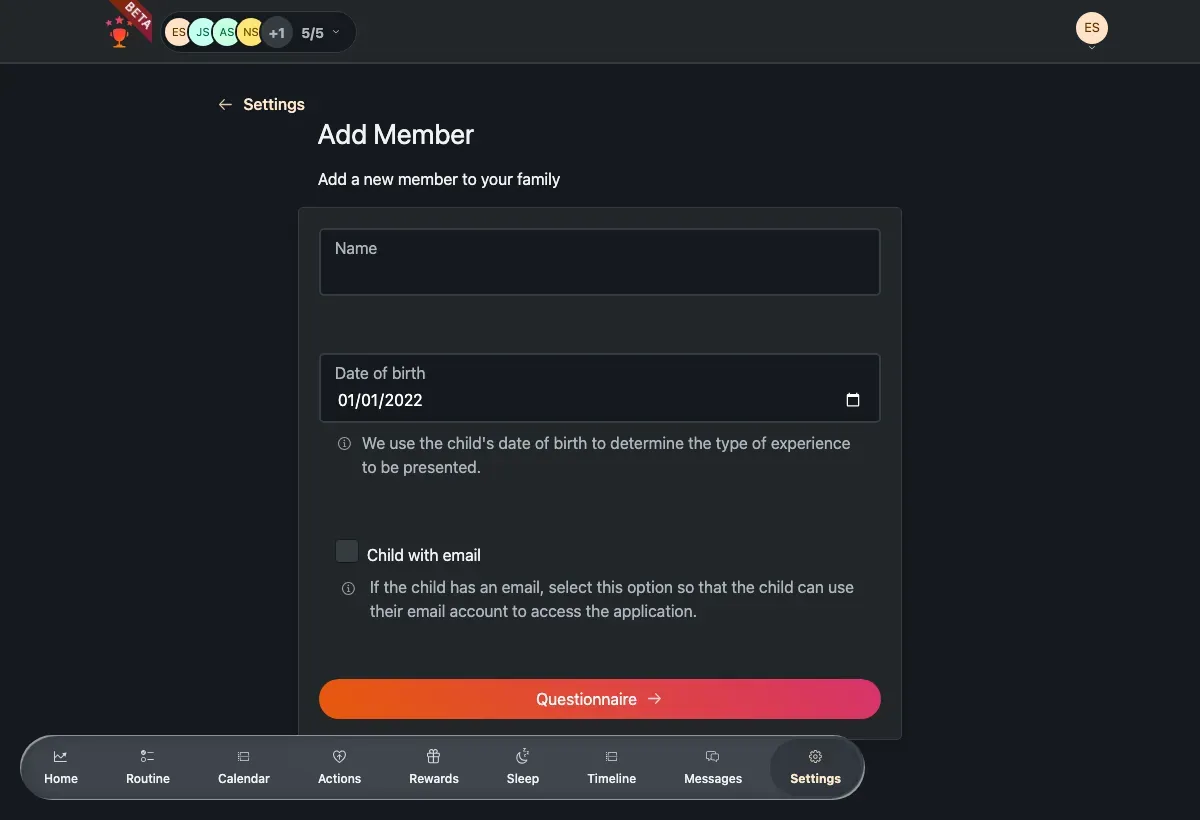
Enter the child’s name.
-
Set their birthdate. The picker won’t let you choose a date younger than the minimum age (4). TaDone uses the birthdate to tailor the experience to their age.
-
Leave child has email off for most children — the profile is created directly and the child simply picks their avatar on the profile picker (no login of their own). Turn it on only for an older child who has their own email and should sign in themselves; in that case TaDone generates a join link for them, the same way it does for a guardian.
-
Press the button to continue to the plan questionnaire.
3. Create a plan
Section titled “3. Create a plan”Next TaDone offers to build the child a starting plan — the routines, actions, and rewards they begin with. This is the create-a-plan questionnaire.
What it’s for. Rather than dropping you into an empty profile, the questionnaire seeds the child with a sensible, ready-to-use setup you can adjust. Everything it creates is normal content you can edit, add to, or remove afterwards — it’s just a head start, not a locked-in choice.
The questionnaire opens on a Create a plan intro screen that lists what it will set up. From here you have two choices:
- Start — go through the steps and pick what the child begins with.
- Create manually — skip the questionnaire entirely. The child’s profile is created straight away with no starter content, and you build their routines, actions, and rewards yourself later.
The steps
Section titled “The steps”If you press Start, a short stepper walks you through three picking steps and a summary. A progress indicator at the top shows where you are, and your choices are kept as you go — a reload part-way through won’t lose them.
-
Routines — the day-to-day tasks the child earns points for. They’re grouped by time of day (morning, afternoon, evening, night) and come pre-filled with a sensible default set (get up, wash, breakfast, study, dinner, brush teeth, read, sleep, and so on). Keep the ones that fit, remove the ones that don’t, and continue.
-
Actions — one-off behaviours worth recognising, split into positive actions (things to celebrate) and negative ones (things to flag). Search the list, tick the ones you want, or use Select all on a group. You can leave this empty and add actions later.
-
Rewards — what points can be redeemed for, grouped into single-use, time-based, and money-based rewards. Pick from the templates, or leave it empty and create rewards later.
-
Confirm — a summary of the routines, actions, and rewards you chose, each with an Edit link back to that step. When it looks right, press Create to finish.
4. The child’s profile is ready
Section titled “4. The child’s profile is ready”Once the child is created, their profile appears immediately on the profile picker and in the family members list. A guardian can enter the child’s profile to set a photo and other preferences, and the child can start completing their routines right away.