
Register an action
Registering an action is the step that moves points. Until you register an occurrence, an action definition sits in the library and does nothing. Registering records that the action really happened for a specific child, and awards or deducts the points.
Register an occurrence
Section titled “Register an occurrence”-
From the library, tap an action’s register link (or open the register form and pick an action with the autocomplete).
-
Set the Level — a rating from 1 to 5 that reflects how much the moment deserves. A live indicator shows the projected points gained (or spent) as you change it.
-
Write a Note describing what happened (required).
-
For a Positive action, add a Message for the child — an encouraging line they’ll see. TaDone offers a few suggestions to pick from.
-
Under Apply to, choose the child it’s for. When only one member is eligible, they’re selected automatically.
-
Confirm the Date (defaults to now).
-
Tap Register action. The points are applied and the occurrence appears in the history.
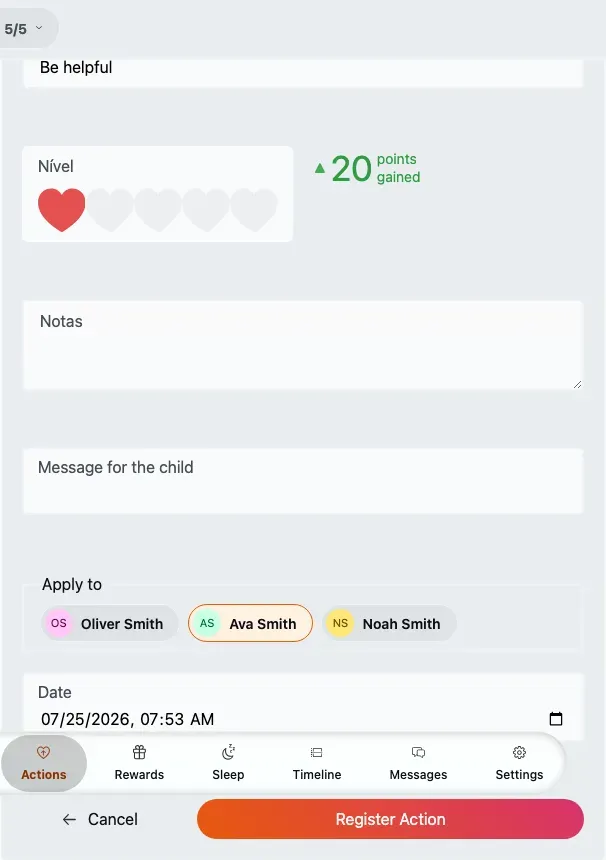
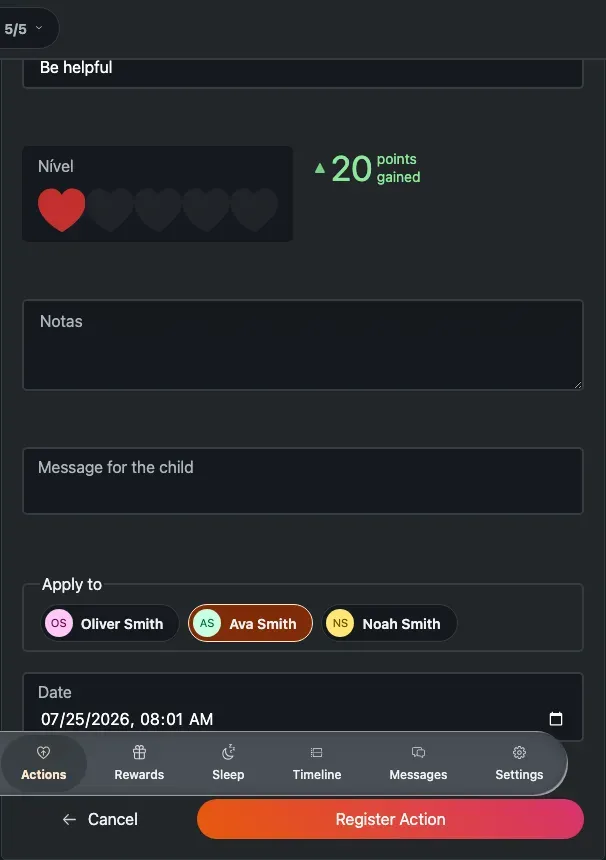
Registering an action — the Level rating drives the projected points shown alongside it.
Register fields
Section titled “Register fields”The fields above:
- Action — which action you’re recording, chosen with the autocomplete.
- Level — an intensity from 1 to 5. Required, default 1; the projected points update as you change it. Hidden when the points block is hidden (a Negative action with negative points turned off).
- Note — describes what happened. Required, at least 2 characters.
- Message for the child — an encouraging line. Required for Positive actions only; a few suggestions are offered. Not shown for Negative actions.
- Apply to — the child it’s for. Auto-selected when only one member is eligible.
- Date — required. Defaults to now and can’t be set in the future.
Review, edit and delete history
Section titled “Review, edit and delete history”The History tab lists every registered action, newest first and grouped by day. Each entry shows who recorded it and for whom, the note and message, and a heart-badged point change (❤️ +N for positive, 💔 −N for negative).
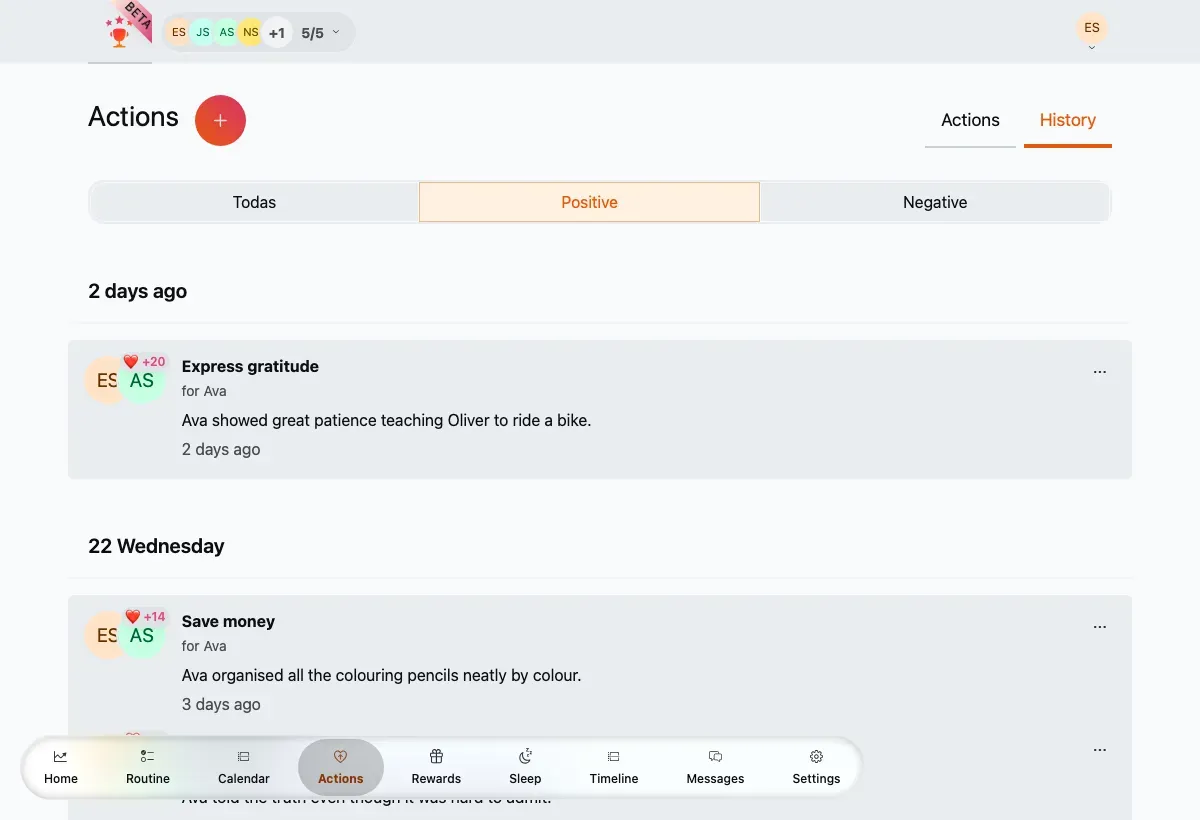
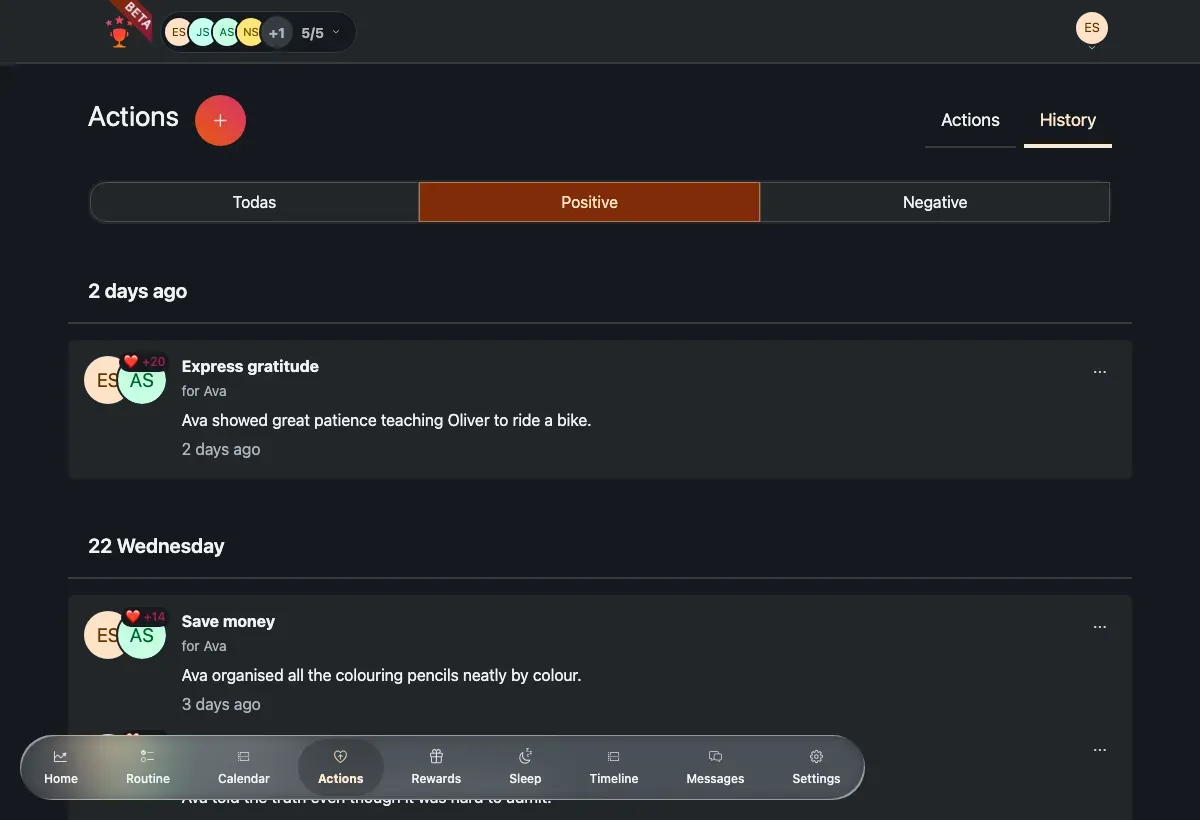
The history timeline, filtered here to Positive actions.
- Use the filter chips to show all actions, only Positive, or only Negative.
- Tap Load more to page through older entries.
- Open an entry’s ⋯ menu to edit or delete it. Deleting asks you to confirm and reverses the point change.