
The family calendar
The Calendar is a shared family schedule for appointments, therapy, school, activities and more. It sits alongside routines but is separate from them: routines are the daily to-dos, the calendar is where dated events live.
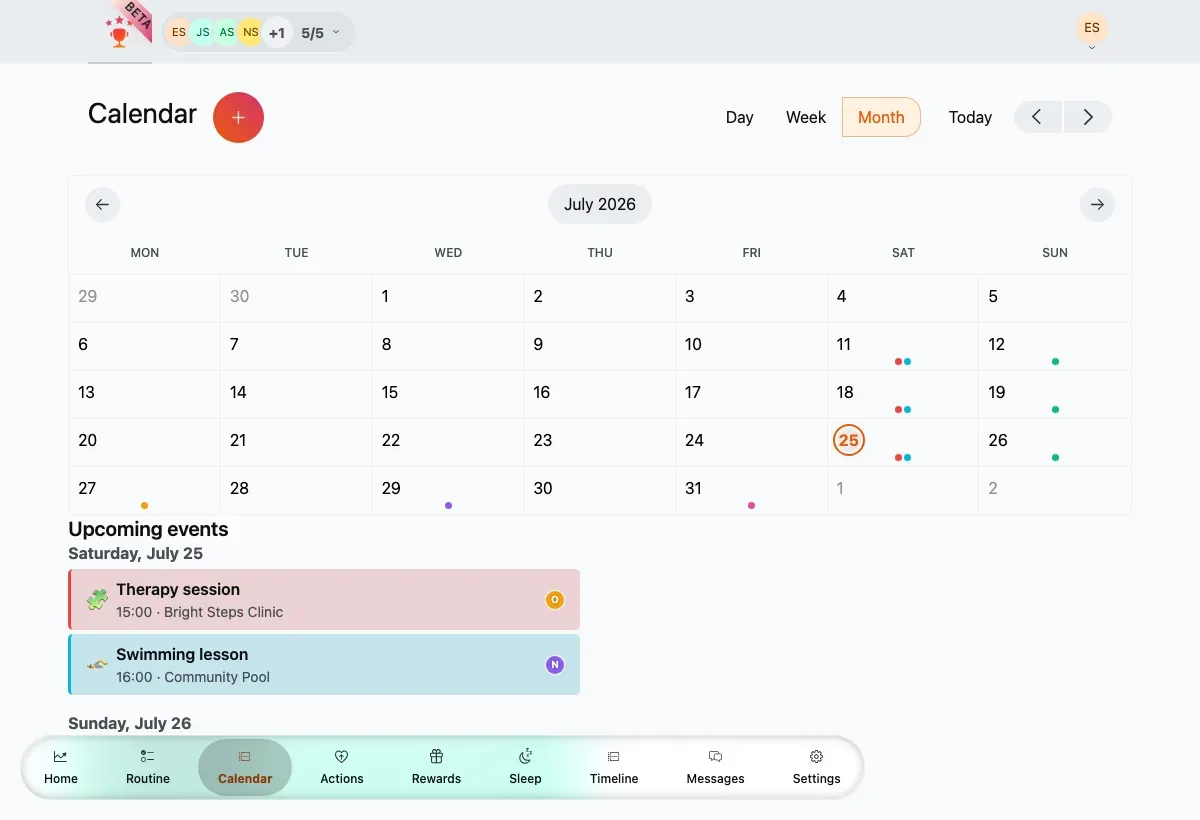
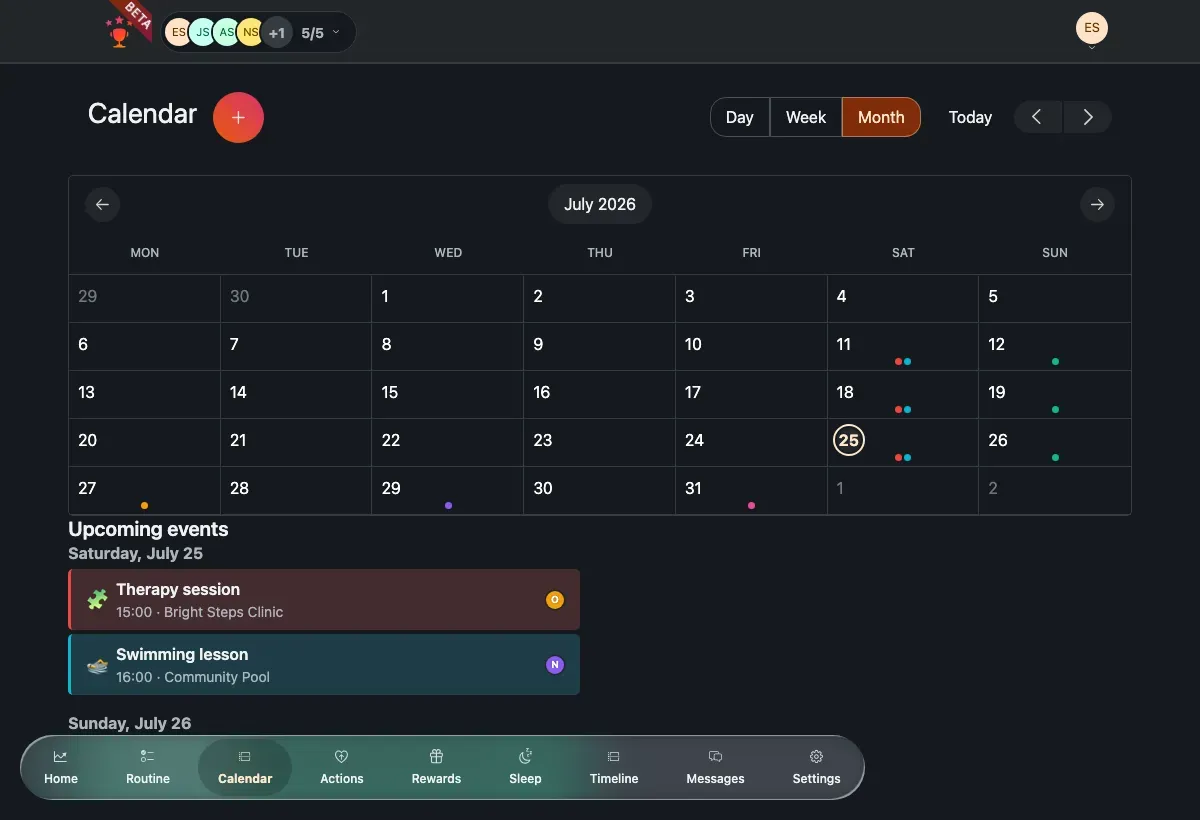
Month view. Days with events show a marker, and Upcoming events are listed below the grid.
Views and navigation
Section titled “Views and navigation”Switch between three views with the segmented control at the top:
- Day — a single day’s timeline.
- Week — the seven days at a glance; tap a day to open it in Day view.
- Month — the full month grid, with an Upcoming events list below it.
Use the date slider (the arrows) to move through days, weeks or months, and Today to jump back to the current date.
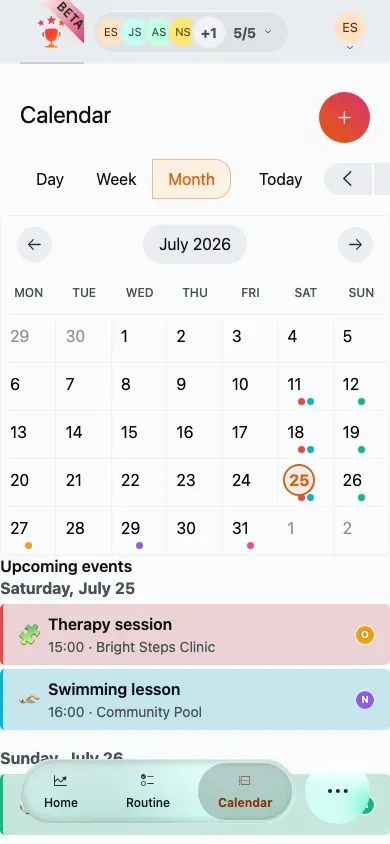
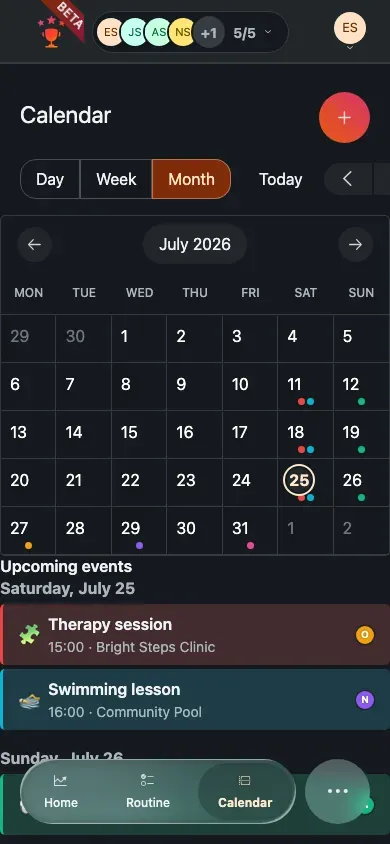
On mobile the view control and date slider stack above the grid.
Adding an event
Section titled “Adding an event”Guardians tap the + (Add event) button to open the event form.
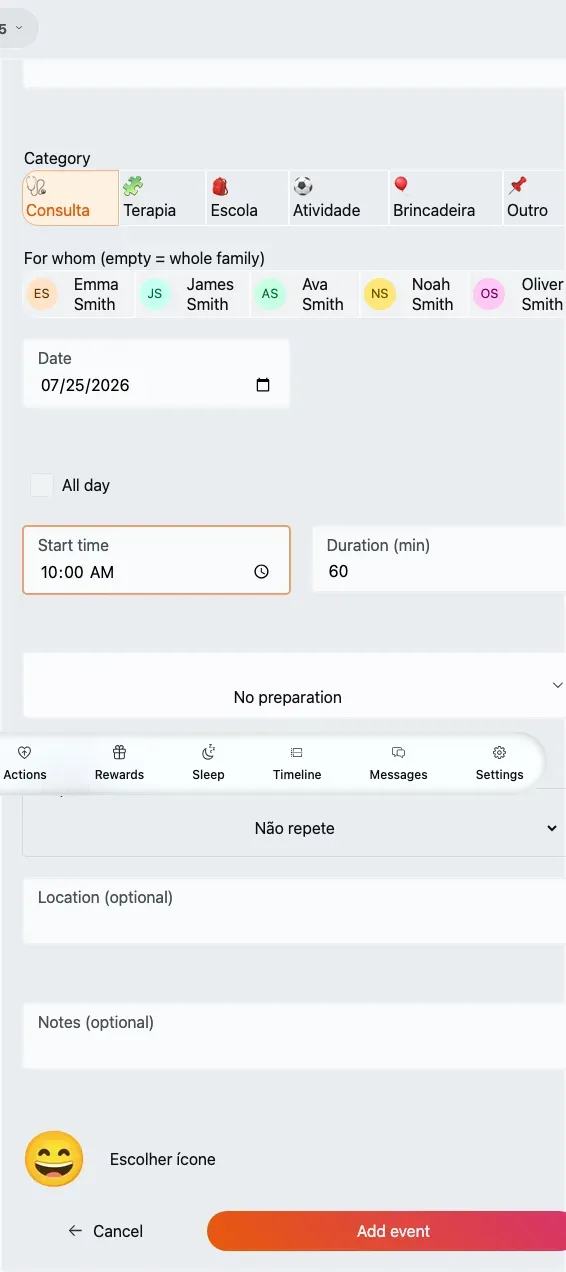
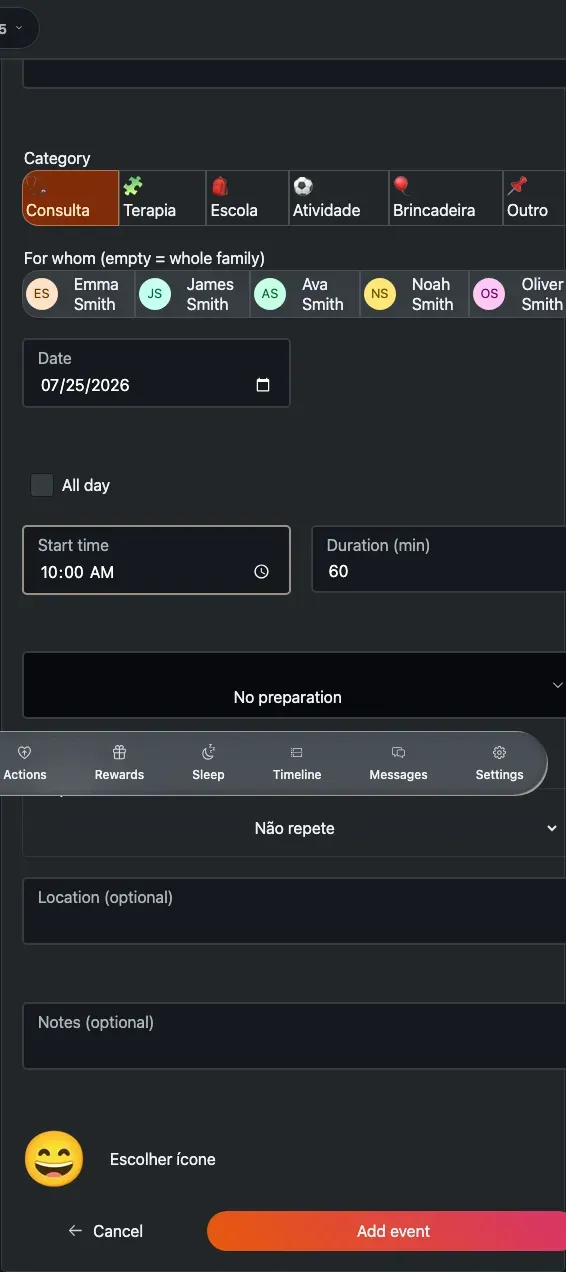
A new event: pick a category, choose who it’s for, set the date and time, and optionally add preparation, repetition, location and notes.
-
Tap + on the calendar.
-
Enter a title and pick a category — appointment, therapy, school, activity, playdate or other. Each category sets a default icon.
-
Under For whom, choose the members it’s for. Leave it empty and the event is for the whole family.
-
Set the date. Toggle All day, or set a start time and duration.
-
Optionally set a preparation lead-time (days of notice before the event).
-
Optionally set repetition, add a location, notes and an emoji.
-
Tap Add event.
Event fields
Section titled “Event fields”The fields above, in order. Some only appear for a new event or the whole series, not when you’re editing a single day:
- Title — required.
- Category — appointment (the default), therapy, school, activity, playdate or other. Each one sets a default icon.
- For whom — the members it’s for. Optional; leave it empty and the event is for the whole family.
- Date — required. Defaults to the day you opened.
- All day — a toggle, off by default. When on, the start time and duration are hidden.
- Start time — shown when All day is off. Defaults to 10:00.
- Duration (min) — shown when All day is off. Cannot be negative. Default 60.
- Preparation — how much notice you want: none (default), the eve (1 day), a few days (3) or a week (7).
- Repetition — off by default; see Recurring events below.
- Location — optional.
- Notes — optional.
- Icon — the emoji marker. Required; defaults to the category’s icon.
Recurring events
Section titled “Recurring events”Turn on repetition to make an event repeat. You can set:
- Frequency — daily, weekly, monthly or yearly.
- Interval — every N days/weeks/months, for example every 2 weeks (minimum 1, default 1).
- Which days — the weekdays (for weekly) or the day of the month, 1–31 (for monthly).
- End rule — never (the default), on a specific date, or after a number of occurrences (default 10).
Editing a recurring event
Section titled “Editing a recurring event”When you open one day of a recurring event, TaDone asks which occurrences your change should affect.
-
Open a recurring event from a specific day.
-
Choose This day only or The whole series.
-
In this day only, adjust the title, time, location or notes and tap Save this day — or tap Skip this day to cancel just that one occurrence.
-
In the whole series, edit any field including the recurrence itself, or tap Delete to remove the entire event.