
Creating tasks & routines
From the routine board, tap the + (Add) button to open the add screen. It has two tabs — Task and Routine — so you can create a one-off task or a repeating routine from the same place.
Create a single task
Section titled “Create a single task”A task is a one-off: it happens on one day and doesn’t repeat.
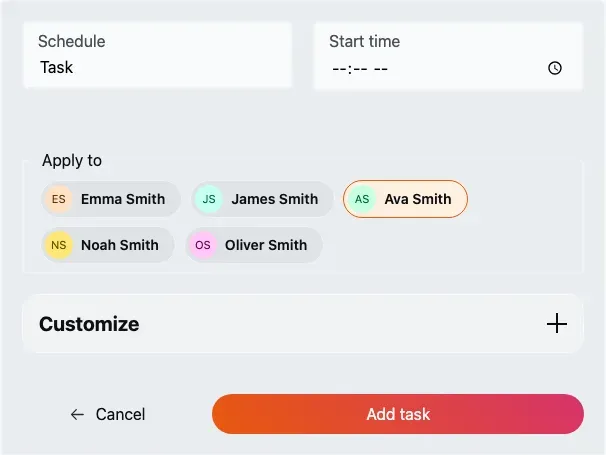
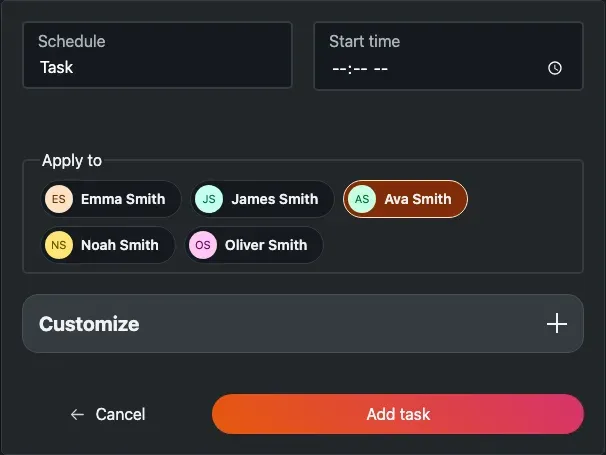
The Task tab. The field at the top (Schedule) is the routine-type picker; below it are the start time, the members to apply to, and the Customize section.
-
On the add screen, stay on the Task tab.
-
Optionally open the routine-type field at the top and pick a template to pre-fill the name, icon, duration and points. (More on templates below.)
-
Set the start time — this is required.
-
Under Apply to, choose who the task is for. If the family has more than one assignable member you’ll see them all; by default it applies to the children.
-
Open Customize to adjust the name, notes, duration, points and emoji icon.
-
Tap Add task.
A new task defaults to 5 points and 5 minutes. The name is required, the start time is required, the duration must be greater than 0, and points must be between 1 and 100.
Task fields
Section titled “Task fields”Every field on the Task tab, top to bottom (the name, notes, duration, points and icon live inside Customize):
- Schedule — the routine-type picker. Optional; choosing a template pre-fills the name, icon, duration and points.
- Start time — required. Defaults to the current time.
- Apply to — the single member the task is for. Shown only when more than one member can be assigned (children plus parents and educators; therapists are excluded). Defaults to the current board member, otherwise all children.
- Name — the label on the task card. Required.
- Notes — free text. Optional.
- Duration — length in minutes. Required, must be greater than 0. Default 5.
- Points — awarded on completion. Required, 1–100. Default 5.
- Icon — the emoji shown on the card. Required. Default 😎.
Create a recurring routine
Section titled “Create a recurring routine”A routine is a template that produces a task on every weekday you choose. It has everything a task has, plus a weekday picker and multi-member assignment.
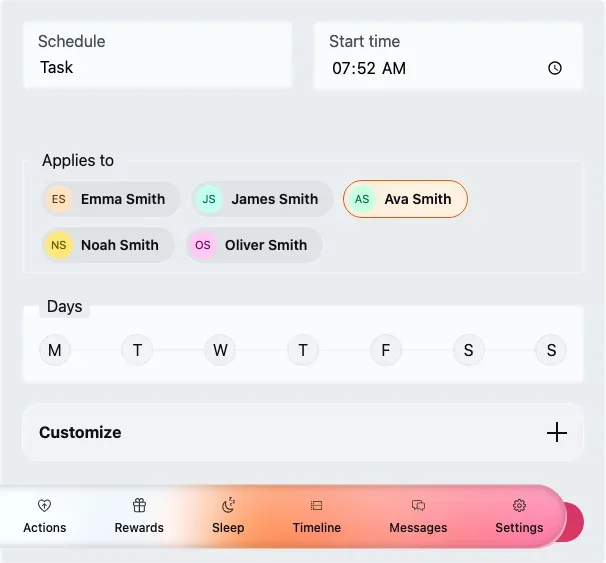
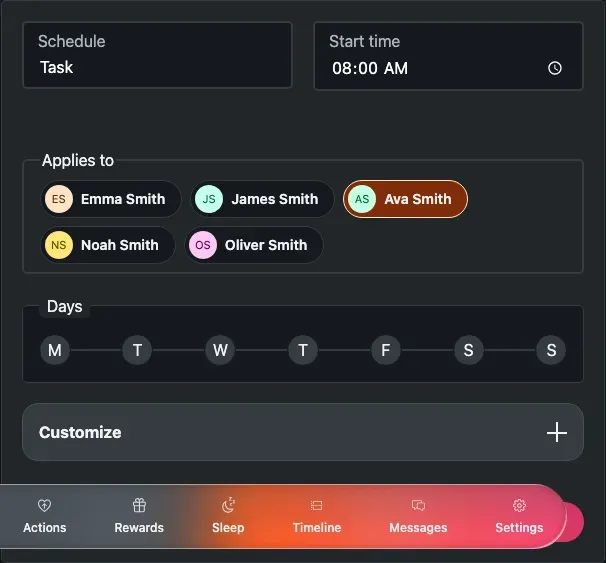
The Routine tab adds a Days row (the weekday picker) and lets one routine apply to several members at once.
-
On the add screen, switch to the Routine tab.
-
Optionally pick a template from the routine-type field to pre-fill the fields.
-
Set the start time.
-
Under Applies to, select every member the routine is for — you can pick more than one.
-
In Days, tap the weekdays it should repeat on. At least one is required.
-
Open Customize to adjust the name, notes, duration, points and emoji.
-
Tap Add Routine.
A new routine defaults to 10 points and 20 minutes. The name needs at least 2 characters, the duration must be between 1 and 1440 minutes, points between 1 and 100, and you must pick at least one weekday and at least one member.
Routine fields
Section titled “Routine fields”The Routine tab has everything the Task tab has, plus the Days picker and multi-member assignment (the name, notes, duration, points and icon live inside Customize):
- Schedule — the routine-type picker. Optional; a template pre-fills the name, icon, duration and points.
- Start time — required. Defaults to the current time.
- Applies to — the members the routine runs for. Multiple choice, at least one required. Shown only when more than one member can be assigned.
- Days — the weekdays the routine repeats on. At least one is required.
- Name — required, at least 2 characters.
- Notes — free text. Optional.
- Duration — length in minutes. Required, 1–1440 (up to one full day). Default 20.
- Points — awarded each time it’s completed. Required, 1–100. Default 10.
- Icon — the emoji shown on the card. Required. Default ✅.
Start from a template
Section titled “Start from a template”At the top of both forms is a routine-type field (labelled Schedule on the Task and Routine tabs). It’s a searchable list of ready-made templates — wake up, brush teeth, homework and more — each with its own name, emoji, duration and points.
-
Open the routine-type field and search or scroll for a template.
-
Select it. The name, icon, duration and points are filled in for you.
-
Adjust anything you like in Customize before saving.
Templates are just a starting point — nothing is locked, so edit the pre-filled values freely. The same library powers the routine picker used when you first set up a child.
Editing later
Section titled “Editing later”- To edit a single task, use its edit menu on the routine board in edit mode. The button then reads Update task.
- Editing a routine template changes it everywhere it runs; the button reads Update Routine. Remember that changing or deleting a routine offers a today only vs. future / stop routine choice — see edit mode on the board.